
Text Rule Builder Manual
1. What this plug-in does
This plug-in looks at a record's values and automatically enters text that matches the record's conditions into a specified text (single-line text) field.
- Conditions (for example, "Type is Defect Report" or "Amount is greater than ¥300,000") are arranged in order from top to bottom, and the text from the first matching rule is output.
- The values you compare against can be fixed text or numbers, but you can also use the values of other fields or formulas (numeric fields only).
- You can create multiple output fields. For each field, you can choose which rule set to apply.
- You can lock the output field so it cannot be edited directly on the record entry screen.
- Before saving, you can enter sample values and try out the evaluation result (rule test).
2. Opening the configuration screen
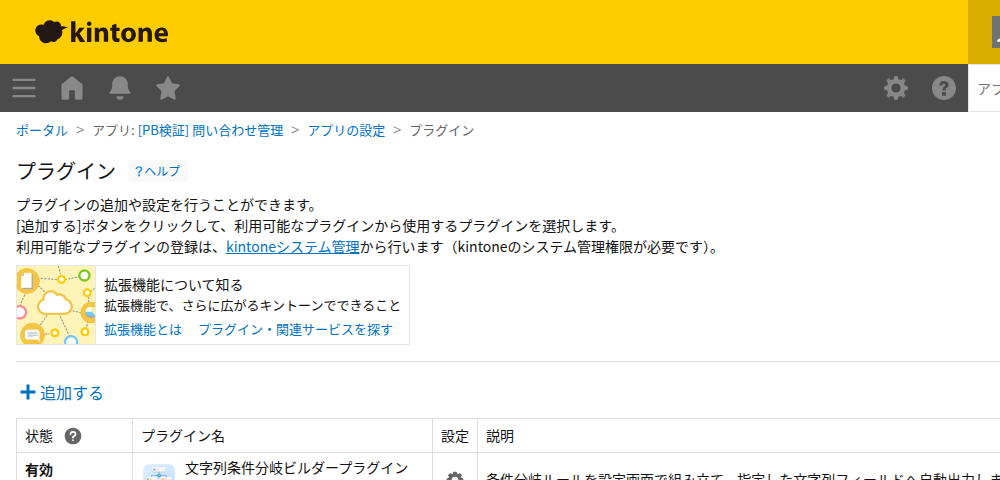
- Open the target app (this manual uses the "Inquiry Management" app as an example).
- Open "App Settings" in the upper right.
- From "Plug-ins" in the left-hand menu, select
Text Rule Builder Plug-in.
3. Setting the field where text is entered
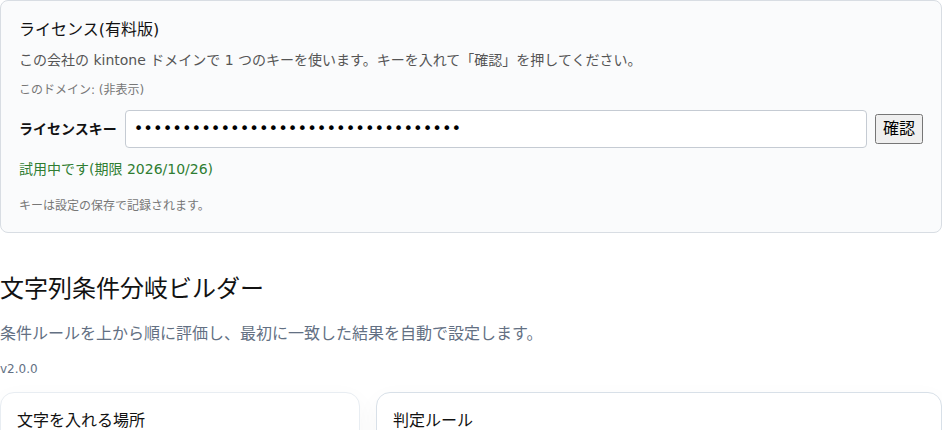
From top to bottom, the configuration screen shows the license field, then the title and version number, then "Where to enter text" (on the left) and "Rule sets" (on the right).
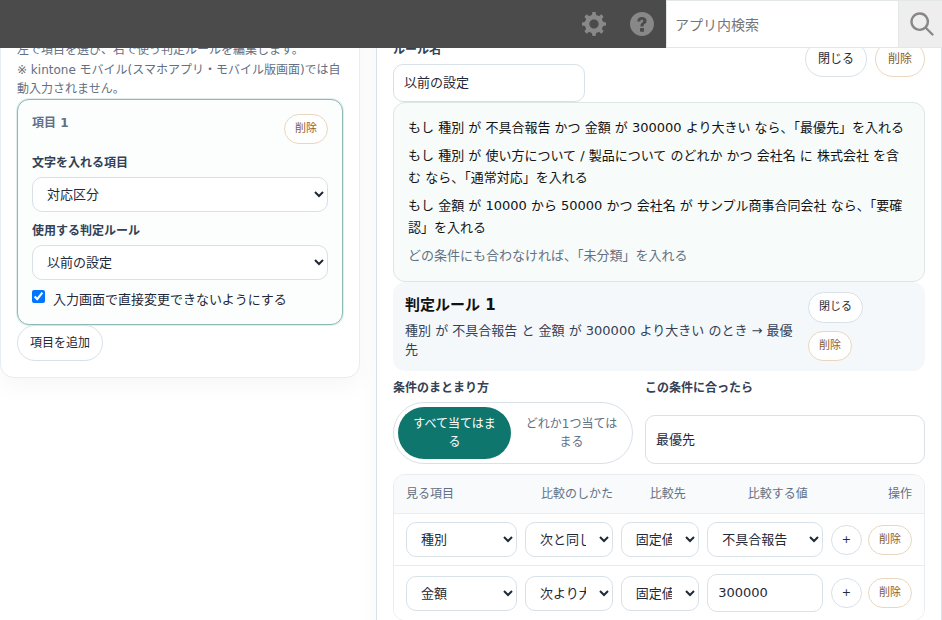
Add field- Adds one field that text will be entered into automatically. You can only select single-line text fields in the app (output is not available for number, date, radio button, or similar fields).
Field to enter text into- The destination field for automatic input. The same field cannot be selected more than once within a single configuration.
Rule set to use- Choose which rule set applies to this field. Selecting "Create a new rule set" creates a new rule set. Multiple fields can also share the same rule set.
Prevent direct changes on the entry screen(locking the output field)- When turned on, this field becomes read-only on the Create and Edit screens, and only the evaluation result is entered. Users cannot edit it by hand. This is on by default.
- When turned off, the field can be edited on screen, but if you change the value, save the record, and then reopen this screen or save an edit again, the evaluation result will overwrite it.
- To delete a field, click
Deleteon its card.
The field used for text output itself cannot be referenced in a rule's conditions or formulas (doing so causes an error when saving).
4. Creating rule sets
Here you create a "rule set" (a group of conditions). Within a single rule set, you can arrange multiple "rules" (condition rows) in order.
Rule set name- The name of the rule set (optional).
Add rule- Adds one new condition row. Rows are evaluated in the order they were added (top to bottom).
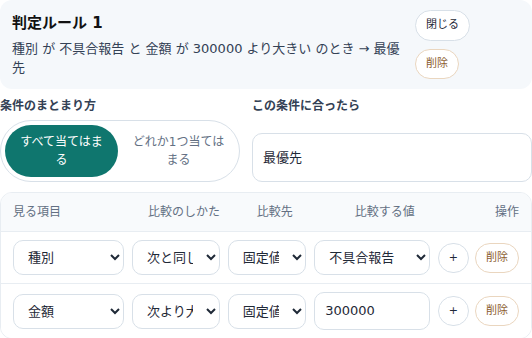
Settings within each "rule":
How conditions are combinedAll must match(AND): Matches only when every condition in the row is satisfied.Any one must match(OR): Matches when at least one condition in the row is satisfied.
- Condition row (
Field to check/Comparison type/Compare against/Value to compare)Field to check: The app field used in the condition. You can select number, single-line text, radio button, drop-down, date, date and time, or Calculated (treated as numeric) fields.Comparison type: The available comparison methods depend on the field type (see the list in the next section).Compare against: Where the comparison value comes from.Fixed value: Compares against a value you enter directly.Other field: Compares against the value of another field on the same screen (only fields with a matching type can be selected).Formula: Compares against the result of a calculation using only numeric fields (for example,[unit_price] * [quantity]). In formulas, write numeric fields as[field code]. Basic arithmetic operators and parentheses are supported.
Value to compare: The input field for the value, which changes depending on the comparison type and source.- Use
+on a row to add a condition below it, andDeleteto remove that row (deleting the last remaining row automatically resets it to an empty row).
Text to enter when this condition matches- The text that is output when this rule matches.
- Use
Collapse/Expandon a rule to collapse its row display.Deleteremoves the rule itself (deleting the last remaining rule automatically resets it to an empty rule).
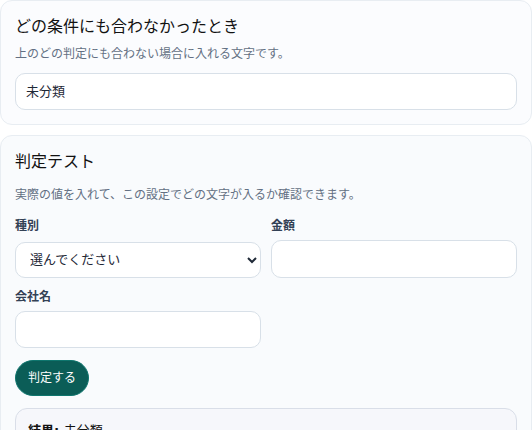
Evaluation order and what happens when nothing matches
- Rules are evaluated in order from top to bottom, and only the output of the first matching rule is used (even a more specific rule lower down will not be used if a rule above it matches first). Place the rules you want prioritized near the top.
- If no rule matches, the default text entered in "Text to use when no condition matches" is output (if left blank, the field will be empty).
5. List of comparison types (operators)
The available comparison types depend on the field type.
- Number / Calculated fields: Equals / Does not equal / Greater than / Greater than or equal to / Less than / Less than or equal to / Within range / Outside range / Is empty / Is not empty
- Single-line text: Equals / Does not equal / Contains / Does not contain / Starts with / Ends with / Is empty / Is not empty
- Radio button / Drop-down: Equals / Does not equal / Is one of / Is none of / Is empty / Is not empty
- Date / Date and time: Equals / Does not equal / Before / After / Today / Yesterday / Tomorrow / Within a number of days / More than a number of days before / Is empty / Is not empty
For "Other field" and "Formula," comparisons are only possible between matching types (number with number, text with text, date and date-and-time can be combined, and radio button/drop-down can only use "Equals"/"Does not equal"). Options such as "Is empty," "Is not empty," and "Today"/"Yesterday"/"Tomorrow" do not use a comparison source.
6. Rule test
(The screenshot is shared with Section 4.)
At the bottom of each rule set is a "Rule test" area where you can check the behavior before saving.
- Enter values for the fields used in the conditions.
- Click
Test. - The "Result" (the text that would be output), the "Matching rule," and the "Reason" are displayed.
If you change the condition settings, the result is automatically cleared (click Test again to re-check). This rule test only checks behavior within the configuration screen and does not change any actual records.
7. Using it on the entry screen
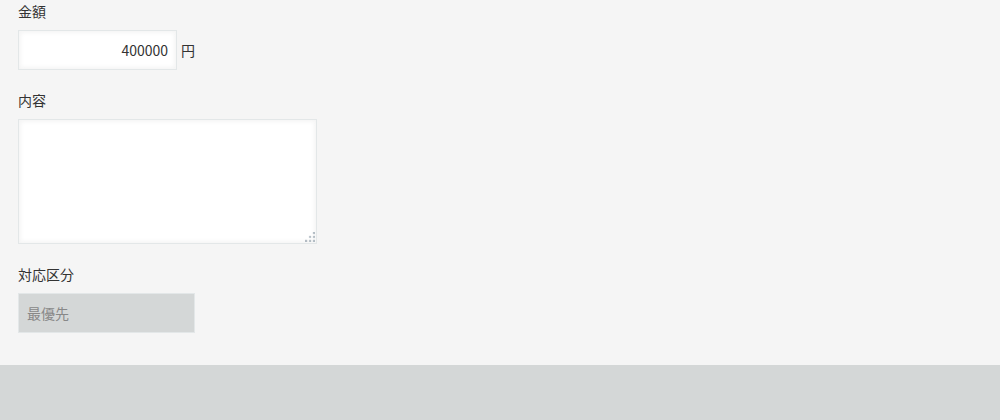
Once you save your settings and update the app, this works on the Create and Edit screens of the target app.
- When the screen opens, the output field is automatically filled with the evaluation result based on the current values of the fields used in the conditions.
- When you change the value of a field used in a condition, the output field is recalculated immediately.
- When you save (register or update) a record, the value is recalculated once more using the final values before saving.
- If the output field is locked, it is displayed in gray and cannot be entered manually.
- This does not run on the view (list) screen or the record detail (read-only) screen. Those screens simply display the value that was determined at the time of creation or editing.
8. Common troubleshooting points
No text appears in the output field
- Did you click "Update app" in App Settings after saving your settings, to apply them to the live app?
- Is the field you selected as "Field to enter text into" placed on the entry screen you're checking?
- Do the values of the fields used in the conditions actually match the expected rule's conditions? (You can check this with the rule test.)
- Is the license (see Section 9 below) valid? If it has expired or has not been registered, the feature stops working.
The wrong text is entered
- Rules are evaluated from top to bottom, and only the first matching rule is used. Check whether a rule above the one you intended is matching first.
Automatic input doesn't work in kintone mobile
- This plug-in works only in PC browsers. Automatic input does not work in kintone mobile (the mobile app or mobile browser screens). See Section 9, "Supported environment."
An error appears when saving
- "The output field itself cannot be used in a condition or comparison formula": Check whether the field selected as the output destination is being referenced in another rule's conditions or formulas.
- Formula-related errors: Check the syntax of
[field code]and confirm that the referenced field is a numeric field.
9. Supported environment
PC browsers (latest versions of Chrome/Edge). kintone mobile (the mobile app or mobile browser screens) is not supported. On mobile, the output field will not be filled in automatically.
10. Supported version
Supported version: 2.2.1
11. License (trial and purchase)
The license field is located at the top of the configuration screen.
- The trial can be used once, for 14 days, per kintone domain (company). Clicking
Try free for 14 daysautomatically enters a key. - If you have purchased a key, enter it, click
Confirm, and save. - For the second and subsequent apps within the same kintone domain, you can use the plug-in without entering a key (once the key has been confirmed or a trial started in any one app, the configuration screen will show "Valid for this domain").
- If the trial period ends, or if no key has been registered or the key is invalid, the feature stops working and a notice is displayed in the lower right of the screen. Administrators should register a key from this configuration screen.
- Purchase page: https://plugbits.app/kintone/kintone-rule-builder/ (Purchase checkout: https://buy.stripe.com/aFadRb1rF3oCcta4IZ8so06)
- Terms of use: https://plugbits.app/kintone/terms/
12. Notes
- After changing your settings, you must click "Update app" in App Settings after "Save" for the changes to take effect in the live app.
- The output field must be a single-line text field. Output is not available for number, date, or selection-type fields.
- The type of any field referenced in a condition or formula must match the type of the value being compared (fields with a mismatched type cannot be selected).