
AutoSignage Manual
Supported version: 2.2.1 Operating environment: PC browsers (Chrome, Edge, etc.). This plug-in is designed for use on large signage displays and kiosk devices without a keyboard (touch operation). It does not support the kintone mobile app or mobile browser view (since it does not include any mobile-specific scripts, the feature itself does not run on mobile).
1. What this plug-in does
This plug-in optimizes the kintone list view screen for digital signage use (wall-mounted displays, kiosk devices).
- Signage mode, which hides the menu, header, and other UI elements
- Automatic scrolling and automatic reloading of the screen
- Theme (light/dark/auto) and zoom level settings
- Full-screen display
- A control strip in the bottom-right corner of the screen (five buttons for touch operation) and per-device speed/theme settings
2. How to open the configuration screen
- Open the target app.
- Open App Settings.
- Under Plug-ins, open
AutoSignage for Kintone.
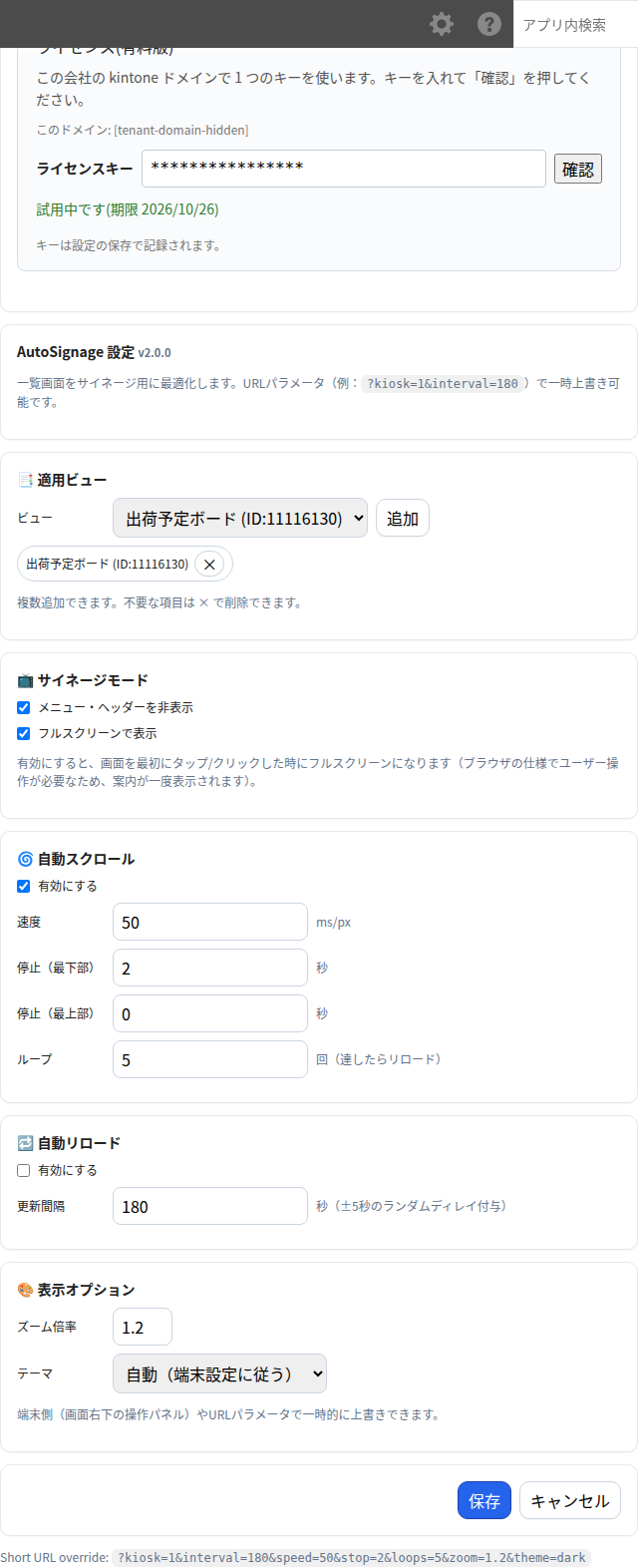
3. License (trial and purchase)
The license section is at the top of the configuration screen.
- Trial: Click
Try free for 14 daysto start. The trial can be used once per kintone domain, for 14 days. Once you click the button, a key is entered automatically—simply save the settings as they are. - If you already have a purchased key: Enter it in the key field, click
Verifyto check its status, and then save the settings to activate it. - For a second or additional app: Once a key has been verified or a trial started for any one app in a given kintone domain, you do not need to enter a key for additional apps in that same domain. (The configuration screen will show "This domain is licensed.")
- After the trial period ends, or if no key has been registered or the key has expired, the list view will remain in its normal display and none of the plug-in's features (auto-scroll, auto-reload, hiding the header, etc.) will run. A notice will appear in the bottom-right corner of the screen.
- Purchase page: https://plugbits.app/kintone/kintone-signage/ (checkout: https://buy.stripe.com/14A5kF8U77ES1Owb7n8so05)
- Terms of Service: https://plugbits.app/kintone/terms/
4. Configuring target views
In the 📑 Applied Views card, add the views on which you want signage mode to run.
- Select a view and click
Addto add it to the list. You can add multiple views. - Click the
×next to an added entry to remove it. - If no views have been added, signage mode runs on all list views. Use this setting only if you want to restrict it to specific views.
5. Signage mode and full-screen display
Configure these options in the 📺 Signage Mode card.
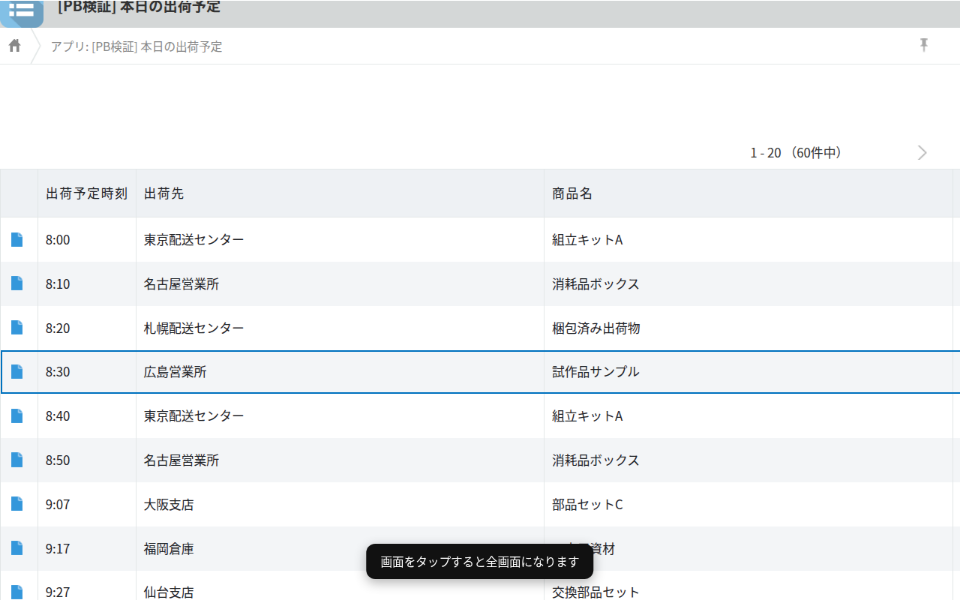
Hide menu and header: Hides the kintone global header, the app title bar, the comment field on the list view, the bottom status bar, and toolbar buttons such as Add Record and App Settings.Display in full screen: When enabled, the screen switches to full-screen mode the first time the user taps or clicks it. Because browsers require a user action to enter full-screen mode, a one-time message ("Tap the screen to enter full-screen mode") is shown first.
6. Automatic scrolling
Configure these options in the 🌀 Auto-Scroll card.
Enable: When turned on, the list view scrolls downward automatically.Speed: The smaller the value, the faster the scroll (milliseconds per pixel; default is 50). Note that the "Speed" control on the control strip/device settings panel in the bottom-right corner simply cycles through three preset levels—Slow, Normal, and Fast—in order.Pause at bottom: The wait time (in seconds) after reaching the bottom of the list before it jumps back to the top.Pause at top: The wait time (in seconds) after returning to the top before scrolling resumes.Loop count: The number of times the list reaches the bottom before the screen reloads.- If both signage mode and auto-scroll are enabled, visitor touch, mouse wheel, and keyboard input are locked so they cannot manually scroll the screen. If auto-scroll is enabled without signage mode, manual scrolling is not locked.
7. Automatic reloading
Configure these options in the 🔁 Auto-Reload card.
- Turn on
Enableand specify theReload intervalin seconds. The actual interval includes a random variance of ±5 seconds (to avoid overloading the server if multiple devices reload at the same time). - Auto-reload always runs at the scheduled time, even while the control strip or device settings panel is open, or while playback is paused. After reloading, the screen returns to normal playback (not paused).
8. Display options (theme and zoom)
Configure these options in the 🎨 Display Options card.
Zoom level: The overall screen magnification (0.5–2.0).Theme: ChooseAuto(follows the device'sprefers-color-schemesetting),Light, orDark. This changes the list view's background, text color, row striping, and header color (applies only to table-format list views; it does not apply to Calendar or custom views).- These settings can be temporarily overridden using the control strip/device settings panel in the bottom-right corner, or via URL parameters (for example:
?kiosk=1&interval=180&speed=50&stop=2&loops=5&zoom=1.2&theme=dark).
9. Control strip in the bottom-right corner (for devices without a keyboard)
Tapping or clicking the 96×96 pixel area in the bottom-right corner of the list view screen, or moving the mouse a meaningful distance (more than 8px), displays a control strip with five buttons. It automatically hides again after 5 seconds of inactivity.

Pause/Resume: Toggles pausing and resuming auto-scroll (same action as Shift+Esc).Speed: Normal: Cycles through three speed levels—Slow, Normal, and Fast—in order. This setting is saved only on this device.Theme: Toggles between light and dark. This setting is saved only on this device.Full Screen: Toggles full-screen display on and off.Settings: Press and hold (about 1 second) to open the settings panel for this device. A progress bar appears on the button to show how long you need to keep holding it. No PIN code or other input is required.
10. Per-device settings
Pressing and holding Settings opens a settings panel that applies only to this device.
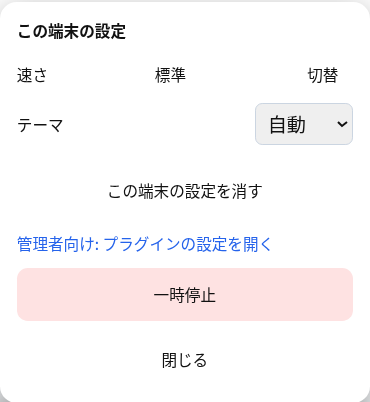
Speed: Use the toggle button to cycle through the three speed levels.Theme: Choose Auto, Light, or Dark from the dropdown.Clear settings for this device: Deletes the speed and theme settings saved on this device and reloads the screen. (This does not affect the plug-in settings configured by the app administrator.)For administrators: Open plug-in settings: Opens the plug-in settings screen for administrators in a new tab.Pause(shown asResumewhile paused): Toggles pause/resume (same action as the "Pause" button and Shift+Esc).Close: Closes this panel.
Where settings are saved: The speed and theme settings are saved in the browser's localStorage, under a namespace specific to each app (pb_signage_<App ID>). These settings are saved only on this device and in this browser and are not applied to other devices. If you want the same settings to apply to other devices as well, change them in the plug-in settings as the administrator.
Order of priority: Plug-in settings (administrator) < this device's settings < URL parameters (URL parameters always take the highest priority). Note that only "Speed" and "Theme" can be overridden at the device level.
11. How to exit signage mode
- If a keyboard is available: Press
Shift+Escto toggle between pause and resume. - On devices without a keyboard: Press and hold
Settingson the control strip, then clickPausein the device settings panel (this has the same effect as Shift+Esc).
"Pause" returns the screen to a paused state; it does not navigate to a different screen. When paused, auto-scroll stops, and the header, toolbar, and list view colors that were hidden by signage mode are restored to their normal display. Auto-reload is the only feature that continues to run at its configured interval even while paused, and after reloading, the screen returns to normal signage playback. To leave the signage screen entirely, navigate to a different screen in the browser, or close the tab or browser.
12. Common troubleshooting points
Full-screen mode doesn't activate
- Browsers require a user action (tap or click) to enter full-screen mode. After the message appears, check whether you have tapped or clicked the screen once.
- Depending on the browser or environment, the full-screen API may be unavailable or blocked.
Signage mode doesn't run (list view stays in normal display)
- The license may be unregistered or expired. Check the notice in the bottom-right corner of the screen, and either register a key or start the trial in the plug-in settings.
Signage mode doesn't run on a specific view
- Check whether that view has been added under
Applied Views. If no views have been added, signage mode should run on all views.
Scrolling has stopped or isn't working
- Check whether
Enableis turned on under auto-scroll. - If the list view has too few records to need scrolling, nothing will happen—this is expected behavior.
Row striping or header colors don't change
- The color theme feature only applies to table-format list views. It does not apply to Calendar views or custom views.
The control strip doesn't appear
- Tap the 96×96 pixel area in the bottom-right corner of the screen, or move the mouse a meaningful distance (more than 8px). Small, incidental mouse movements (jitter) will not trigger it.
Settings changed on this device aren't reflected on other devices
- By design, the device-level speed and theme settings are saved only in that device's browser (localStorage). If you want the same settings applied to other devices, change and save them in the plug-in settings as the administrator.
13. Notes
- Because there is no official API for hiding the global header, app title bar, comment field, and bottom status bar, this functionality relies in part on kintone's internal DOM structure (class names and IDs). If kintone's implementation changes, only this hiding behavior may stop working, while other features (scrolling, reloading, the control strip, theme colors, etc.) will continue to function normally.
- Hiding toolbar buttons (Add Record, App Settings, Filter, Options, Aggregate Results, List/Graph switch, and App Description) requires the official kintone API available from August 10, 2025 onward. On earlier environments, only the hiding of these specific buttons will be skipped.
- Screen wake lock (preventing the screen from sleeping) is only effective in browsers that support it. In unsupported environments, this feature does nothing, and the device's normal sleep settings apply.
- After changing settings, clicking
Saveautomatically returns you to the App Settings screen.