PlugBits for kintone 日本語

AutoSignage ― a kintone plug-in

Is someone hitting F5 every morning on the kintone screen mounted on the wall-TV?

Turn any view into a digital signage display that keeps scrolling and refreshing automatically. Even on devices with no keyboard, you can tap the bottom-right corner of the screen to pause it, change speed, switch theme, or go full screen.

Signage display (dark theme) scrolling through a view automatically; tapping the bottom-right corner brings up the control bar.

¥4,980 one-time, tax incl., per kintone domain (1 license per domain)

You can start the 14-day free trial from the settings screen after installing the plug-in

Need to pay by invoice (for companies)? Contact us

One-page summary for approval (PDF, Japanese)

Common scenarios

Shipping schedule board

Keep today's shipments playing on a warehouse TV. Pair it with ListKit's "Today" tab.
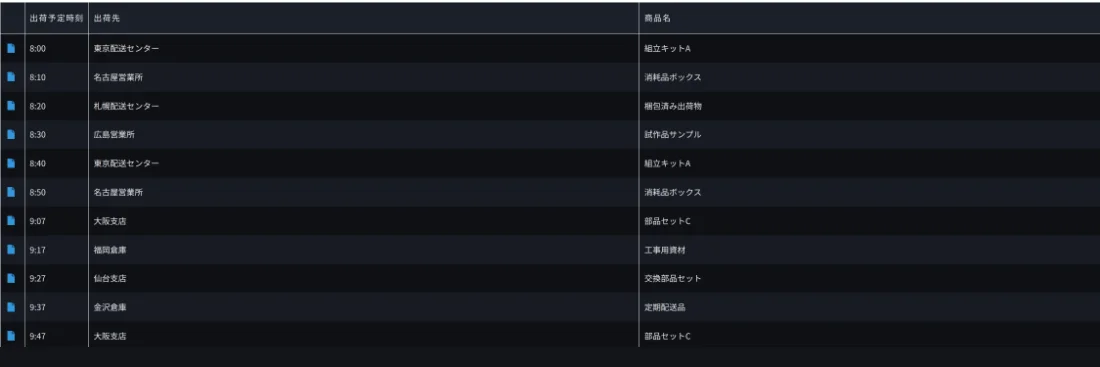
Signage display of a shipping schedule board on a warehouse TV. Dark theme showing time, destination, and product name

Process progress

See the status of every factory process at a glance. Updates happen only in kintone.
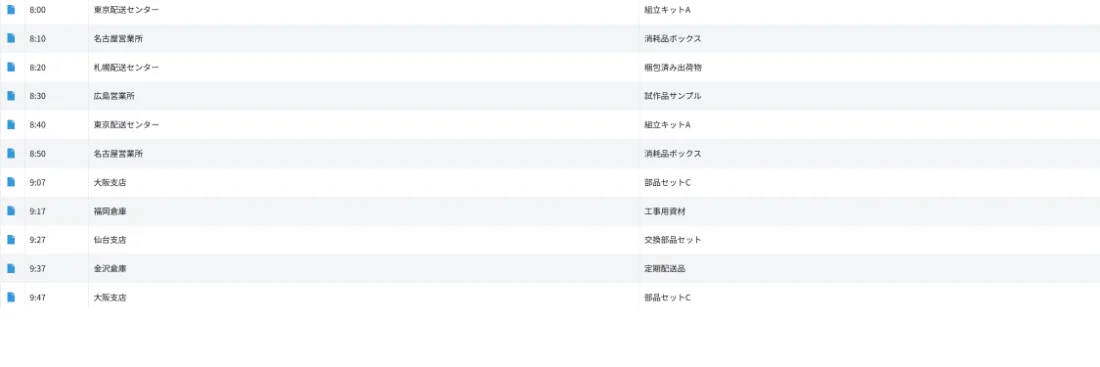
Signage display of a process status list. Light theme showing time, person in charge, and product name

Visitors and meetings

Show today's schedule on the reception device. No one needs to touch it in the morning.
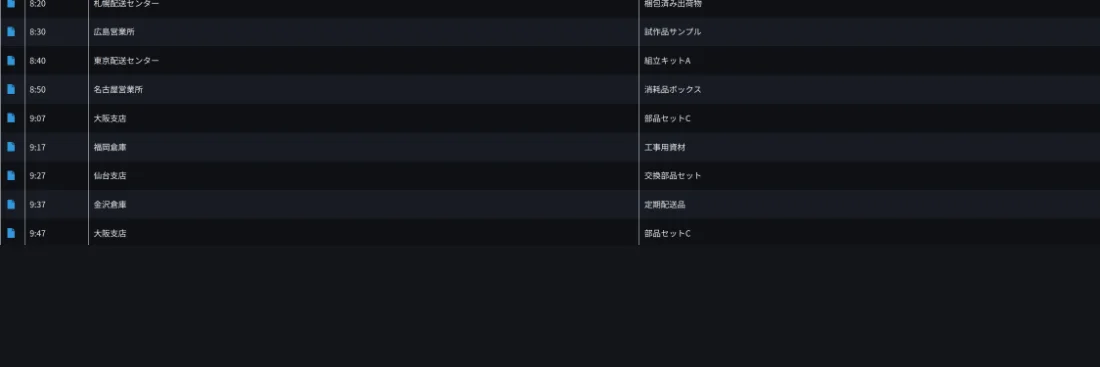
Signage display of today's schedule shown on a reception device. Dark theme list

Screens

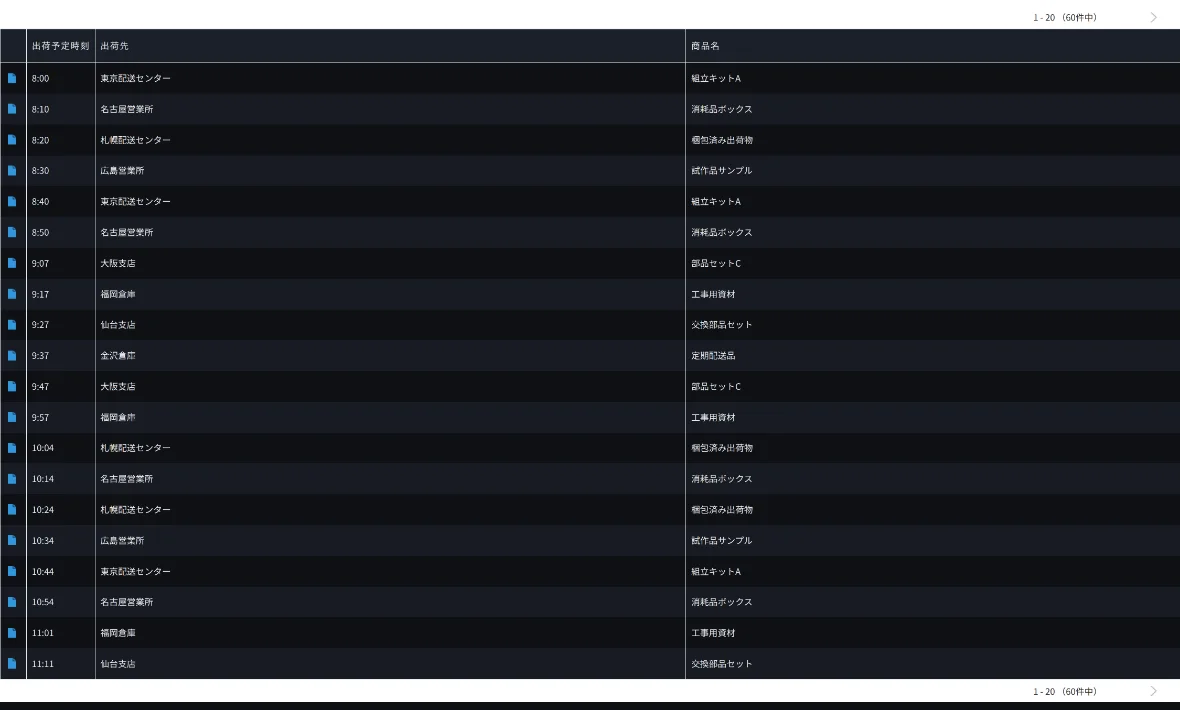
Signage display in dark theme. Header and menu are hidden, showing a shipping schedule list in large text across 20 rows
Signage display (dark): header and menu are hidden, keeping the list scrolling in large text.
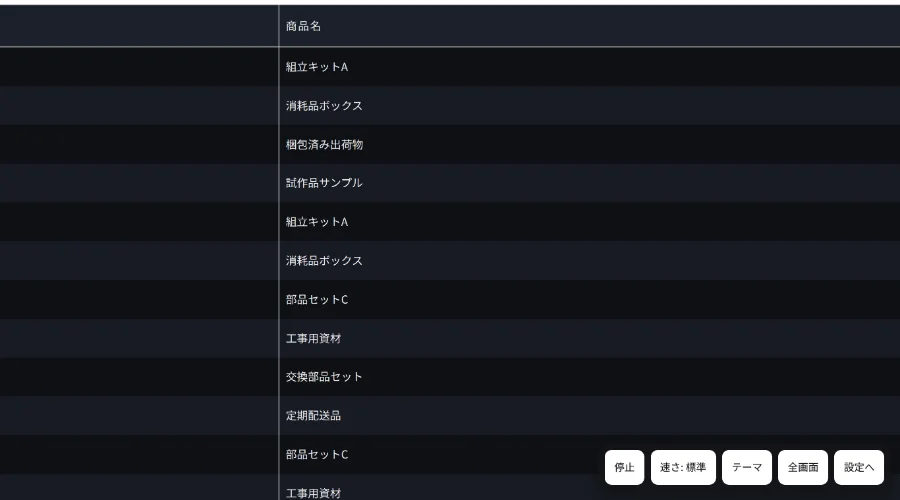
Control bar overlapping the list rows in the bottom-right corner of the screen. Five buttons for pause, speed, theme, full screen, and settings
The 5-button control bar: appears when you tap the bottom-right corner. Pause, speed, theme, full screen, and settings.
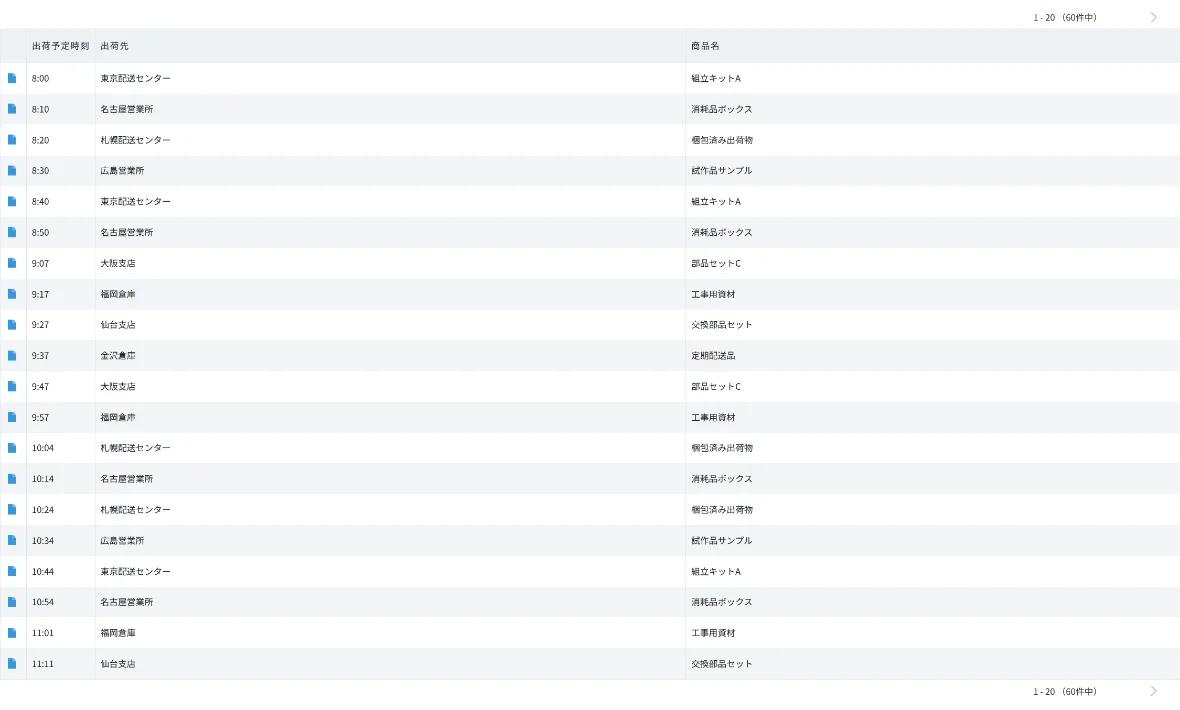
Signage display in light theme. A shipping schedule list in large text across 20 rows on a white background
Light theme: switch to match the brightness of the device or installation location.
AutoSignage settings screen with fields for the view to apply, auto-scroll speed, auto-reload interval, and theme
Settings screen: decide the speed, refresh interval, and theme all in one admin screen.

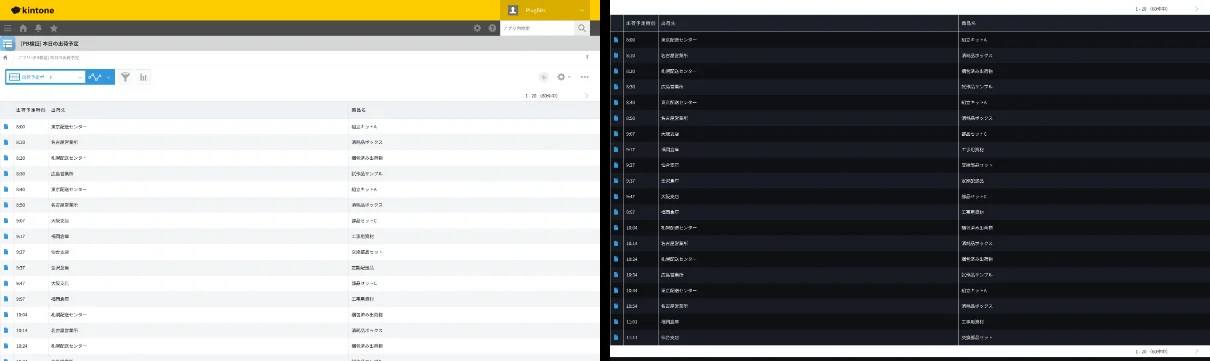
Only the rows you want to show remain.

Comparison image of the standard view (left, with header, menu, and scrollbar) and the signage display (right, with no header and more rows visible)

Left = standard view (header, menu, scrollbar); right = the same view in signage display.

How it works

  1. It only changes how the view is displayed. It doesn't change kintone settings or records. When you turn it off, the screen returns to normal.
  2. No business data is sent externally. License verification only sends your kintone domain name and license key.
  3. It doesn't touch kintone's internal structure — it runs only on official APIs and events.

Terms of use for companies

How to install

  1. Upload the plug-in's zip file (download the zip) in kintone's plug-in management.
  2. In the target app's settings, add the uploaded plug-in to the app.
  3. Open the plug-in's settings screen, enter your key in the "License" field, and save it (not needed for a second or later app on the same domain. If you haven't purchased it yet, you can start a trial from "Try free for 14 days").

If you've lost your key: enter the email address used at purchase and submit the form, and we'll resend the key to that address.

Only 4 settings to configure

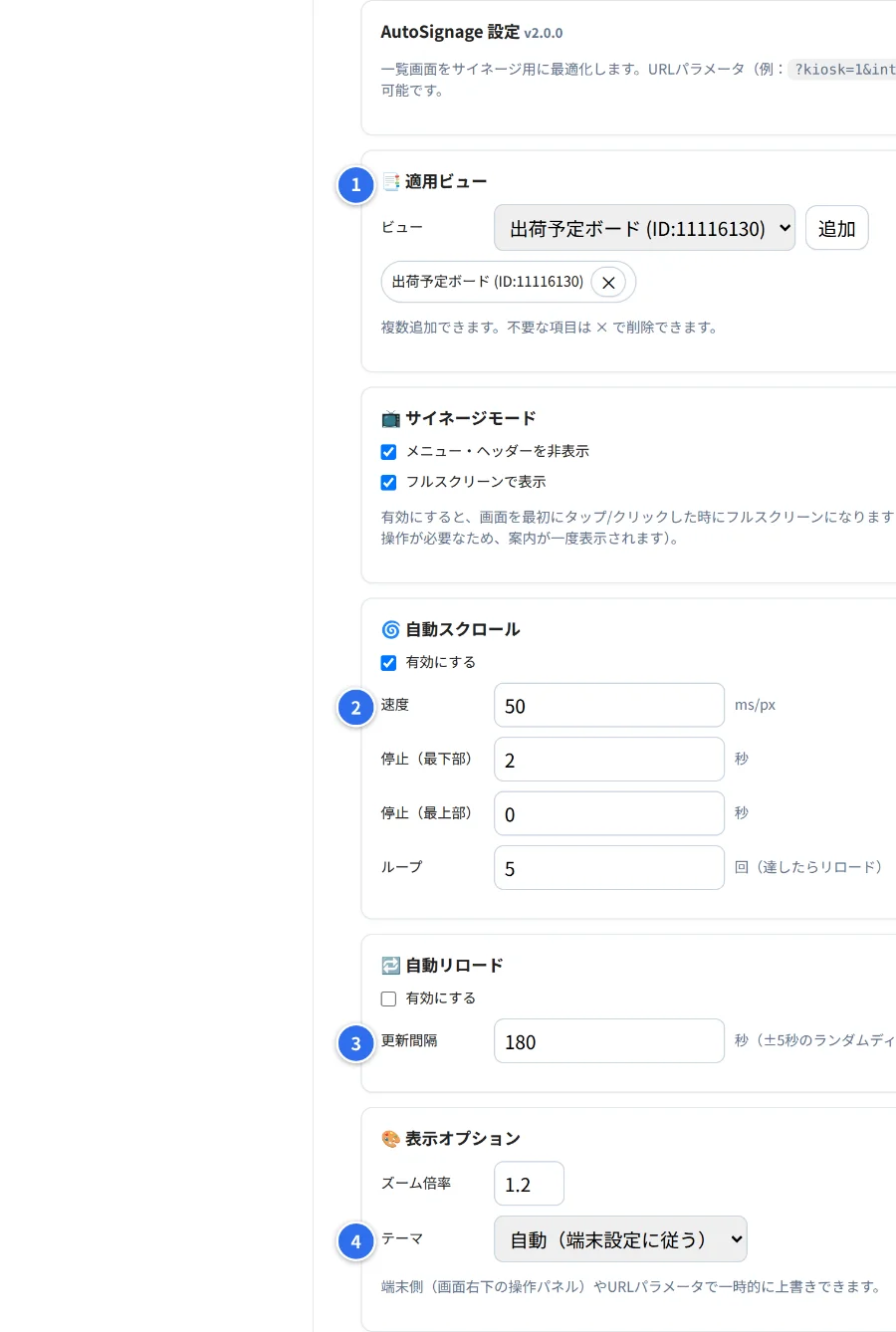
AutoSignage settings screen. Numbered fields for choosing the applied view, auto-scroll speed, auto-reload interval, and theme

Prepare one view to show on the signage display in advance (fewer columns is easier to read).

  1. Choose the view to display on the signage
  2. Set the auto-scroll speed and the pause time at the top and bottom
  3. Set the auto-reload interval
  4. Choose a theme (light, dark, or automatic)

See the manual for detailed steps.

SIGNPOST compliantHow this fits SIGNPOST patterns

  1. Designed in line with Open Information (0-03). It keeps on-site figures displayed on a wall-mounted TV, visible to everyone.
  2. Designed in line with Help track utilization (4-36). It lets you keep an always-on list display running using only the plug-in's own control bar.