
Excel Report Batch Generator Manual
This plug-in merges list view records into an Excel template and bulk-generates xlsx documents. By default, selected records are output stacked vertically on a single sheet (you can also switch to one sheet per record).
1. What this plug-in does
- Select records in a view and generate documents with a single button click, merging field values into an Excel template.
- There are two output modes.
- Document mode: Basically one record per sheet, with table (subtable) line items repeated within the template. Supports page numbers and total page count (suited for quotes, invoices, work orders, and similar documents).
- Label mode: Calculates the number of labels needed from a quantity field and splits output accordingly. Supports QR codes and barcodes (suited for item tags and label stickers).
- The default output is "stack onto a single sheet" (in Document mode this is labeled "Stack vertically on a single sheet (print everything with one Ctrl+P)"; in Label mode it's labeled "Stack onto a single sheet (default)"). Page breaks are inserted automatically at the boundaries between records, pages, and labels (for Label mode, wherever content fits within the paper height), so you can print all the records you selected from the view with a single Ctrl+P. As before, you can also choose to split output into "one sheet per record" or "one sheet per label."
2. System requirements
Intended for use in a PC browser (latest version of Chrome/Edge). Not supported on kintone mobile (the mobile app or mobile view).
3. Applicable version
This manual covers version 2.4.2.
4. License (trial and purchase)
This is a paid plug-in. A "License (Paid Version)" section appears at the top of the configuration screen.
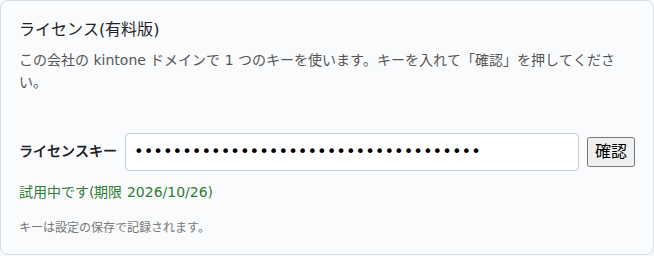
- Trial: Click "Start free 14-day trial" to begin the trial; a key is entered automatically (a message reading "Trial started. The key was entered automatically. Please save your settings." appears — after that, click "Save" at the bottom of the screen). The trial is limited to once per kintone domain (company), for 14 days. While the trial is active, the screen shows "Trial in progress (expires YYYY/MM/DD)".
- Using a purchased key: Enter the purchased key in the "License Key" field, click "Verify," and then "Save."
- Second and subsequent apps: For a second or later app within the same kintone domain, you can use the plug-in without entering a key (once the key has been verified or a trial started on any one app, the configuration screen will show "Valid for this domain").
- Purchase page: https://plugbits.app/kintone/kintone-excel-report/ (checkout: https://buy.stripe.com/7sY9AV2vJgbofFm5N38so04)
- Terms of use: https://plugbits.app/kintone/terms/
- If expired or not registered: If no license key is registered, or if the trial or purchase period has expired, functionality on the view and record details screens (button display and output) stops working. A notice appears in the lower-right corner of the screen: "(Plug-in name): Stopped because the license is unregistered or expired. Administrators should register it from the plug-in configuration screen." (This can be dismissed with the × button, but the feature itself remains stopped.) The administrator must re-register the key on the plug-in configuration screen, then save and update the app.
5. Opening the configuration screen
- Open the target app (the app containing the records you want to output to Excel).
- Open the App Settings.
- Open "Plug-ins," then click the settings icon (gear) for "Excel Document Bulk Generator."
6. Preparing a template
6-1. Where to store the template
In "1. What do you want to create?" on the configuration screen, choose one of three locations for the template.
| Location | Description |
|---|---|
| Template app (recommended) | Loads the Excel template from a separate kintone app used to manage templates. Best suited if you want to switch between multiple documents. |
| Attachment field on this app | Attaches the template to each record of the target app. Best suited if you want to use a different template per record. |
| Fixed URL (legacy setting) | Shown only for apps that had a fixed URL configured in an earlier version. Not selectable for new configurations. |
If you select Template app, enter the following items (the defaults are usually fine):
| Setting | Description | Default |
|---|---|---|
| Template App ID | ID of the app that manages the templates | (Required; e.g., 255) |
| Template Code to Use | Code identifying which template to use. Enter the exact value of templateCode (or whichever field you've renamed the template code field to) from a record in the template app |
(Required; e.g., WI_LABEL) |
| Template Attachment Field Code | Attachment field in the template app | templateFile |
| Template Code Field Code | Field in the template app that holds the code | templateCode |
| Status Field Code | Field used to determine enabled/disabled | status |
| Active Status Value | Value that marks this template code as "usable" | ACTIVE |
If you don't have a template app yet, click the "Create Template App" button below "Template App ID" to automatically create a new app called "Excel Document Templates," containing three fields: templateCode (single-line text), templateFile (attachment), and status (drop-down, ACTIVE/INACTIVE) (the field codes used are whatever is currently entered in the Template Attachment Field Code / Template Code Field Code / Status Field Code boxes at that time). Once creation finishes, the app ID is filled in automatically in "Template App ID." Then open the template app, register one template record (an Excel file), and finally make sure to click "Save" on this configuration screen. If you don't have permission to create apps, you'll get an error — ask your kintone administrator, or create the app manually as described in the table above.
Example template app (the "Quote Template" app in our internal test environment):
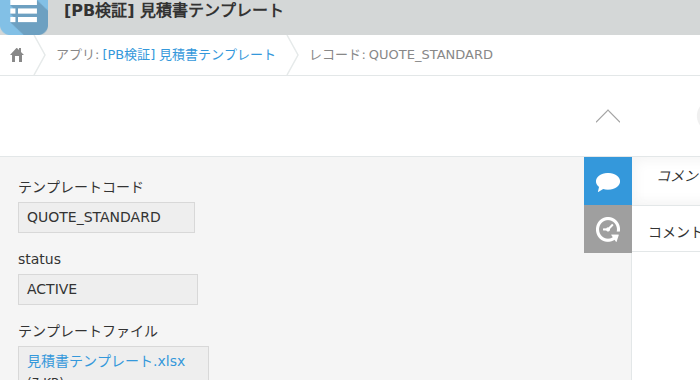
As shown above, register one template per record in the template app. It works as long as it has three items: templateCode (e.g., QUOTE_STANDARD), status (ACTIVE), and templateFile (the attached Excel file). You can register multiple templates — for documents and for labels, for example — as separate records, and specify on the target app side which code to use.
6-2. Writing merge tags
In the cells of your Excel template, write tags marking where values should be merged in. There are two notations, old and new, and both work.
New notation (recommended: single curly braces)
| Notation | Meaning |
|---|---|
{field code} |
Merges that record's value directly. Example: {CustomerName} {Subject} {QuoteDate} {Total} |
{Table.Field} |
A line item row. Any row containing this notation is automatically recognized as a "line item row," and is repeated downward for the number of rows in the table. Example: {LineItems.ItemName} {LineItems.Quantity} {LineItems.UnitPrice} {LineItems.Amount} |
{detailNo} |
Automatically filled with the line item's sequential number (starting from 1). |
If any row in a contiguous block contains {Table.Field}, that whole block of rows is treated as a line item block and repeated. As rows are repeated, merged cells, print areas, page breaks, and images located below (such as a totals row) automatically shift down to match. If the content inside { } is an unrecognized name, it's left as plain text with no action taken (the template won't break).
QR images and barcodes are not supported with single curly braces (e.g., {QR:tag}). Always write these with double curly braces ({{QR:tag}} {{BC:tag}}) (see "Alternate notation" below).
Alternate notation (double curly braces)
| Notation | Meaning |
|---|---|
{{tag}} |
Converted to a field value or an auto-generated value using the mapping table in "Merge Items" on the configuration screen. Example: {{partNumber}} |
{{QR:tag}} / {{BC:tag}} |
QR code image / barcode image |
The {{tag}} notation is intended for Label mode and for templates you've been using from before. For new templates, we recommend the new {field code} notation.
6-3. Example of building a template
The following uses "Quote Template.xlsx" from our internal test environment as an example (this example is used with Document mode and the default "stack vertically on a single sheet" output).
| Row/Cell | Content |
|---|---|
| A1:E1 (merged) | Title "Quote" |
| A3:C3 (merged) | Recipient "{CustomerName}" |
| D3:E3 (merged) | Date "Quote Date: {QuoteDate}" |
| A4:E4 (merged) | Subject "Subject: {Subject}" |
| Row 5 | Line item header row: "No. / Item Name / Quantity / Unit Price / Amount" |
| Row 6 (repeated) | Line item row: "{detailNo} / {LineItems.ItemName} / {LineItems.Quantity} / {LineItems.UnitPrice} / {LineItems.Amount}" |
| Row 7 | Totals row: "Total / {Total}" |
The key is row 6 alone. Writing a {Table.Field} entry such as {LineItems.ItemName} in this row causes it to be automatically duplicated to match however many rows are in the record's line items (subtable), regardless of count. The totals row (row 7) automatically shifts down as the line items grow, so there's no need to design the template around a fixed number of line item rows. The print area is also adjusted automatically to match the template's print area settings.
In the same way, you can also build a simple template containing just a small label (part number, quantity, QR code, etc.) for use with Label mode.
7. Setting 1: What do you want to create? (output mode and template location)
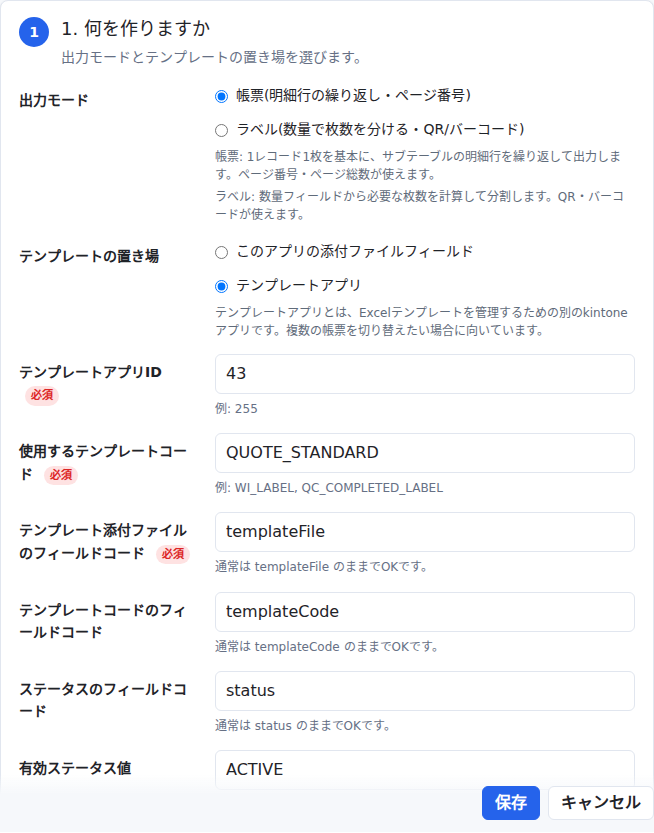
- Output mode
- "Document (repeat line items / page numbers)": The default. Basically one record per sheet, with table (subtable) line items repeated.
- "Label (split quantity into multiple labels / QR / barcode)": Calculates the number of labels needed from a quantity field and splits output accordingly. Supports QR codes and barcodes.
- Template location: As described in "6-1. Where to store the template."
8. Setting 2: Verify the mapping between the template and fields
Once you've entered your settings, you can use this screen to check whether all the template's merge tags are mapped correctly.
- Either choose a local xlsx file with "Select and check a local Excel file," or load the file from the template app with "Load and check from template app" (the selected file is read only within your browser and is not sent anywhere).
- A table is displayed listing: sheet name!cell reference, the merge tag written there, its mapped destination, and status (✓ / ⚠ Not Found).
- Any item showing "⚠ Not Found" means the tag name on the Excel side doesn't match the mapping on the configuration screen.
Opening "Field Codes for This App (for copying)" at the bottom of the screen shows a list of this app's field codes; clicking one copies it in the form {field code}. You can then paste it into your Excel template.
9. Setting 3: Output
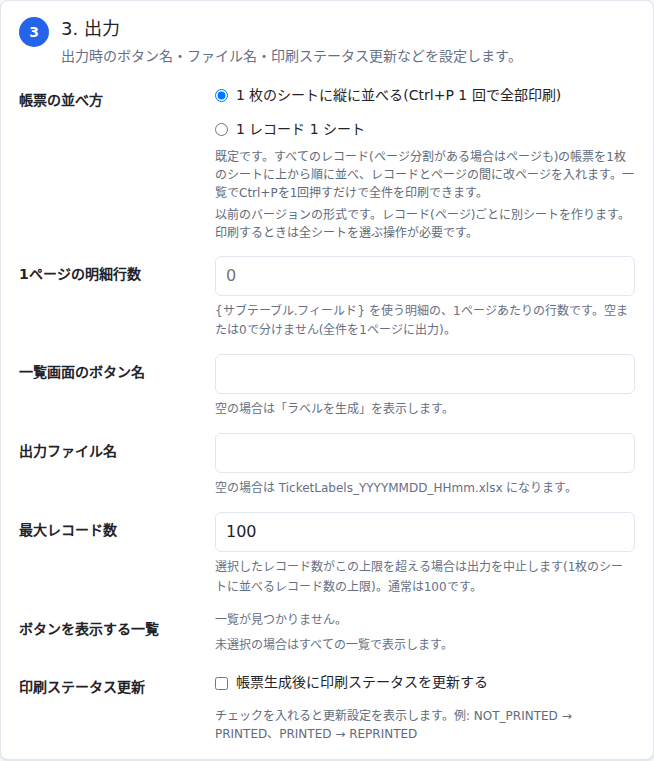
- Document layout (Document mode) / Label layout (Label mode): The wording of the options changes depending on the output mode, but the setting is the same.
- Document mode
- "Stack vertically on a single sheet (print everything with one Ctrl+P)": Default. Lays out the documents for all records (and pages, if page splitting applies) from top to bottom on a single sheet, with page breaks inserted between records and pages. You can print everything with a single Ctrl+P from the view.
- "One sheet per record": The previous version's format. Creates a separate sheet for each record (or page). When printing, you need to select all sheets manually.
- Label mode
- "Stack onto a single sheet (default)": Default. Stacks labels vertically on a single sheet up to the height that fits on a page, calculated from the template's paper size, orientation, and margins, then inserts a page break where it no longer fits (printing is auto-scaled to fit a single page width). You can print everything with a single Ctrl+P from the view.
- "One sheet per label": The previous version's format. Creates a separate sheet for each label.
- Document mode
- Line items per page: The number of line item rows per page, for line items that use
{Table.Field}. If left blank or set to 0, line items are not split across pages (all are output on one page). - View button label: If left blank, Label mode shows "Generate Labels" and Document mode shows "Output Documents." If a name is entered, that name is used regardless of mode.
- File name: You can mix in field codes using
{field code}. Example:PurchaseOrder_{seiban}_{recordId}→PurchaseOrder_S-001_12.xlsx. Selecting a field from the dropdown next to the input box inserts{field code}at the cursor position ({recordId}= record number,{today}= YYYYMMDD, and{now}= YYYYMMDD_HHmm are also available; dates are fixed to the time the file was created). When outputting multiple records together, if a value is the same across all records (e.g., all with the same lot numberS-001), it's used as-is; if values differ, it shows the first value plus a count (e.g.,12 and 2 more). If a field is blank or missing, that part is omitted. Names that don't use{}are used as-is for the file name (as before). - If file name is left blank: Label mode uses
TicketLabels_YYYYMMDD_HHmm.xlsx; Document mode uses<template file name>_YYYYMMDD_HHmm.xlsx(e.g.,PurchaseOrderTemplate_20261025_1430.xlsx). However, for purchase order documents (template code starting withPO_, or template name containing "Purchase Order") and work order documents (starting withWO_, or name containing "Work Order"), the file name is based on the record number (template's{recordId}) and date, e.g.,PurchaseOrder_12_20261026.xlsx/WorkOrder_7_20261026.xlsx(for multiple records:PurchaseOrder_12 and 2 more_20261026.xlsx). - Max sheet count (max record count): If the number of selected records exceeds this limit, output is canceled. Default is 100.
- Views to show the button on: If none are selected, the button appears on all views.
- Update print status: When enabled, records can be updated automatically after output. Configure the print status field, the value set after the first print (default
PRINTED), the value set after a reprint (defaultREPRINTED), an optional print date/time field, and an optional printed-by field (a USER_SELECT field receives the logged-in user; any other field type receives the user's name). If the current value is alreadyPRINTEDorREPRINTED, the next output setsREPRINTED; otherwise it setsPRINTED.- Current value required for update (optional): Example:
Issued. When set, only records whose current value matches this (comma-separated, multiple values allowed) have the field changed to the "value after first print"; other records (e.g., purchase orders that have already moved on to "Received") are left untouched. Example: in a purchase order app, with Print Status Field = Status, Value After First Print =Ordered, and Update Condition =Issued, outputting an already-issued purchase order changes it to "Ordered" only in that case.
- Current value required for update (optional): Example:
10. Additional settings for Label mode (label quantity settings)
When "Label" is selected as the output mode, "Label Quantity Settings" appears below "1. What do you want to create?"
If you want to generate multiple labels from a single record, turn on "Generate multiple labels based on quantity" and configure the following.
| Setting | Description | Default |
|---|---|---|
| Total quantity field | Field containing the total quantity (numeric portions are read correctly even from a string like "Plan: 100") | (Required) |
| Quantity per label field | Field containing the quantity per label | (Required) |
| Label quantity tag name | Tag name used in Excel as {labelQty} or {{labelQty}} |
labelQty |
Examples:
- Total quantity 100, quantity per label 25 → 4 labels, with
{labelQty}set to 25 on each sheet - Total quantity 110, quantity per label 25 → 5 labels, with the last label's
{labelQty}set to 10
11. Advanced settings (usually no need to change)
"Advanced Settings" at the bottom of the configuration screen are intended for engineers. If you're using the new {field code} notation, you generally don't need to touch these.
11-1. {{tag}} mapping table
Configure this only if you're using double-curly-brace tags like {{partNumber}} on the Excel side. Under "Add Merge Item," map each tag name in Excel to the type of value to merge (kintone field / auto-generated value / fixed text) and its selected content.
QR image: Turn on "Output QR image," merge the cell range where you want to place the QR code, and enter {{QR:tag}} (double curly braces) in the top-left cell. At output time, the QR code is automatically placed within that merged cell range. "QR margin (px)" can usually be left at 4. "QR position" (left/center/right; unset = center) lets you choose the QR code's horizontal position within a wide merged range (it's always centered vertically). For a barcode, use {{BC:tag}}.
In Document mode, writing {{QR:Table.Field}} (e.g., {{QR:LineItems.PartNumber}}; for barcodes, {{BC:...}}) in a merged cell within a line item row generates a QR code for that row's value, row by row.
Make sure any merged cell holding a QR code stays within the bounds of the line item row (a merge spanning multiple rows is still repeated along with the line item block it belongs to).
Available auto-generated values (some only receive a value in specific contexts, such as label generation or page splitting):
| Value | Description |
|---|---|
recordId |
Record number |
seqNo |
Label number / page number |
seqTotal |
Total number of labels / pages |
pageNo |
Page number |
pageTotal |
Total page count |
detailStartNo / detailEndNo |
Line item start/end number |
detailNo |
Line item row number (within the page) |
labelQty |
Quantity for this label |
splitIndex / splitKey |
Split number / split key |
ticketId |
Ticket ID |
qrText / ticketQr / partQr |
QR code text (by purpose) |
today / now |
Today's date / current date and time |
11-2. Line item column mapping table
Used only when the template has no row containing {Table.Field} (ignored if you're using the new notation). Configure the line item table (subtable), the line item start row (the row number where line items begin in Excel), line items per page (legacy), display of blank rows (whether to hide empty rows on pages with fewer line items), and the line item column settings (mapping between Excel columns and subtable fields).
11-3. Print layout correction
Only if the width or height is off after Excel output, adjust the width correction and height correction (default 100%).
12. Saving and updating the app
- Click "Save" at the bottom of the configuration screen.
- After saving, a message appears: "To apply these settings, please click 'Update App' in the upper right."
- Return to the app's settings screen and run "Update App."
Saving alone does not apply the changes to the production screen, so be sure to also update the app.
13. Using it from the view screen
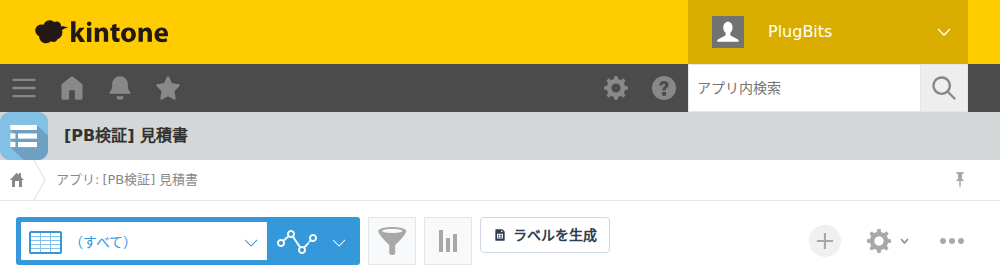
- Open the view screen of the target app. If you haven't restricted which views show the button in the settings, the button appears on all views.
- Click the button at the top of the screen (default label is "Generate Labels" for Label mode, "Output Documents" for Document mode; if you've renamed it in settings, that name is used instead).
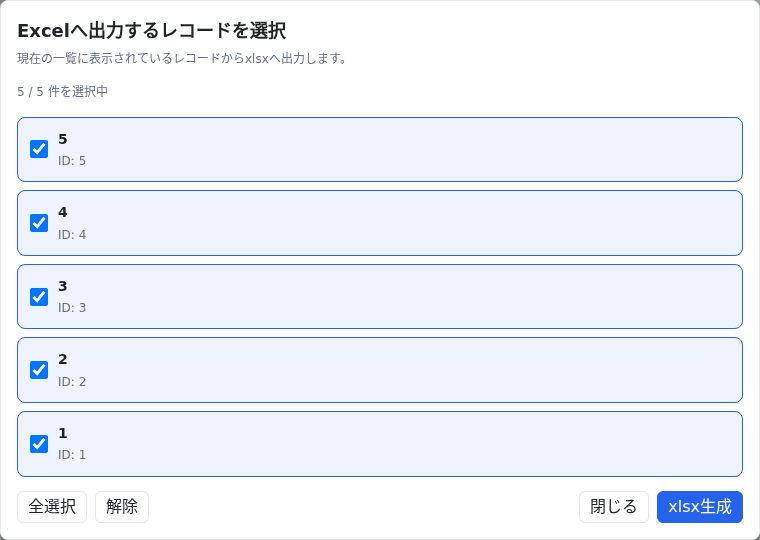
- The "Select Records to Output to Excel" dialog opens. It lists the records currently shown in the view; check the ones you want to output ("Select All" and "Clear" are also available). If your current filter spans multiple pages, use "Load All Filtered Records" to reload all matching records (up to the max sheet count) keeping the same filter conditions and sort order. In Document mode, all the selected records (e.g., all work orders filtered by job number) are combined into a single workbook (default: stacked on one sheet, with page breaks between records).
- Click "Generate xlsx" to download the xlsx file with the selected records merged in. Click "Close" to cancel.
- If you've configured print status updates, the status (and related fields) of the output records is updated automatically.
14. Common troubleshooting checks
| Symptom | What to check |
|---|---|
| Button doesn't appear in the view | Whether the plug-in settings have been saved and the app updated. Whether that view was excluded in "Views to show the button on." Whether the feature is stopped due to an unregistered or expired license (check the notice in the lower-right corner) |
| "Excel template not found" / "Failed to retrieve" appears | Check the Template App ID, Template Code to Use, Status Field Code and Active Status Value, and Template Attachment Field Code (confirm that the matching code's row in the template app is set to ACTIVE) |
| Merge doesn't happen (tags remain as plain text) | Load the template in "8. Verify the mapping between the template and fields" and check for "⚠ Not Found." Confirm the tag name in Excel matches the mapping on the configuration side (field code/mapping) |
QR code/barcode doesn't appear (for line item rows, check the spelling of {{QR:Table.Field}} and that the row's value isn't blank) |
Confirm you wrote it as {{QR:tag}} (barcode: {{BC:tag}}) with double curly braces (single braces {QR:tag} are not supported). Confirm the QR image setting is turned on. Confirm the tag has a value. Confirm the cell range is merged |
| Can't generate multiple labels | Confirm both "Total quantity field" and "Quantity per label field" are selected. Confirm the values can be read as numbers |
| "Number of selected records exceeds the max sheet count (max record count)" appears | Review the max sheet count setting (default 100), or reduce the number of selected records |
| "This browser cannot open the template xlsx" appears | Reopen using the latest version of Chrome or Edge on a PC (kintone mobile is not supported) |
| "Failed to generate xlsx" appears | Check the template file format (.xlsx) and the tag notation |
| xlsx is output but print status isn't updated | Check the print status field, the value being set, and your edit permission for that field |
| A "stopped" notice appears in the lower-right corner | The license key is unregistered or expired. Register the key (or start a trial) on the plug-in configuration screen, then save and update the app |