
kintone's list screen has no built-in way to register several records at once or rewrite a batch of existing records in one action. The standard feature that covers this need is importing records from a file. With a CSV or Excel file prepared ahead of time, you can both bulk-register new records and bulk-update existing ones in the same operation. Before you import, though, you still have to clean up the file and map its columns to an update key.
Importing from a file lets you register and update in a single pass
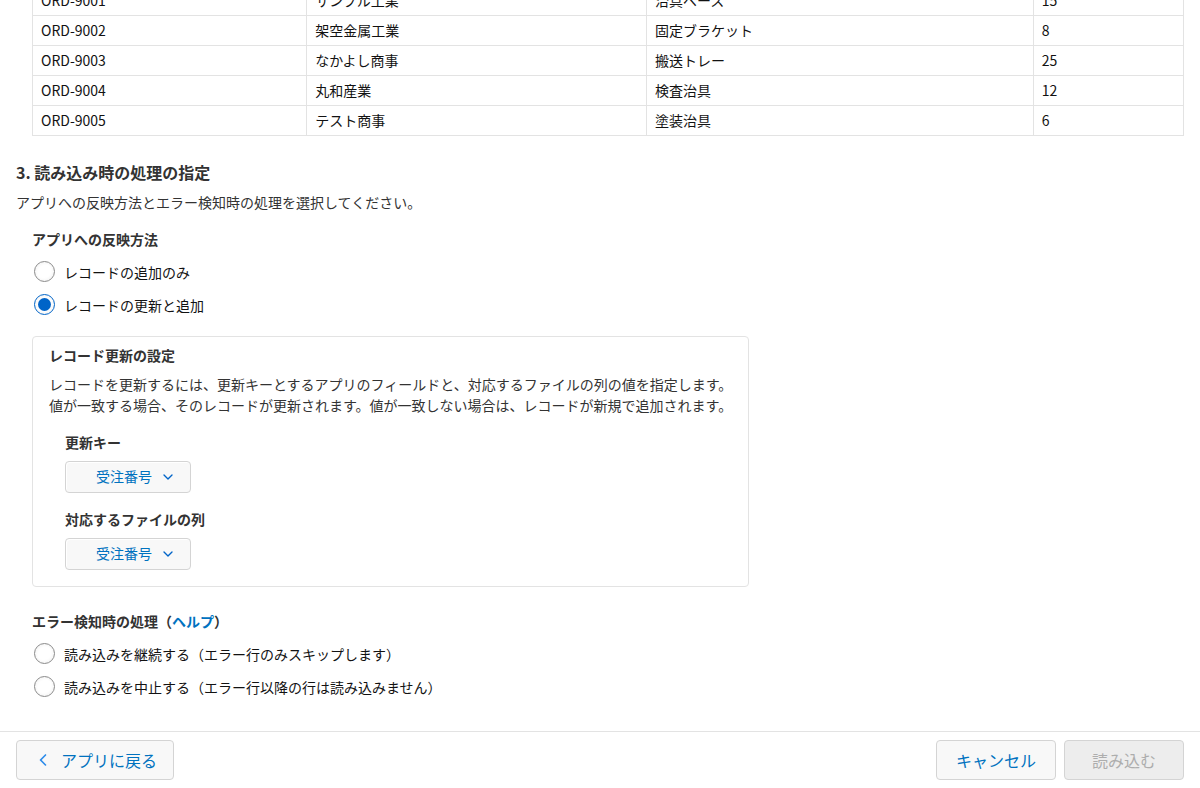
When you import a file, you choose between "Add records only" or "Update and add records." Choosing the latter brings up a screen where you pick the update key field, the field kintone uses to match each row in the file to an existing record in the app. You can set the update key to a Record number, a Text field, a Number field, a Date field, a Date and time field, or a Link field, and the field you choose must hold unique values with no duplicates. In a single import, rows that don't match an existing record are added as new, and rows that do match overwrite the existing record. There's no need to run registration and updates as separate operations.
File size limits matter more than record counts
How many records you can import in one pass depends on the file format. Excel files are capped at 1MB in size, 1,000 rows, and 500 columns. CSV, TSV, and TXT files have far more headroom: up to 100MB in size and 100,000 rows. If you need to handle more than a few hundred records at once, that means working with a delimited text file instead of Excel. Even with generous limits, you still have to check the column order and rebuild the file every time you import.
Check your update key and column mapping before you import
Most of the errors that stop an import partway through can be caught before you even build the file. First, sort the field you plan to use as the update key in its reference list and look for consecutive duplicate values. If duplicates exist, that field can't work as an update key. Second, confirm that every field you want to import into is actually a valid import target, since some field types and settings can't be used as import destinations. Checking these two things before you run the import saves you from chasing down error rows one by one afterward.
If you'd rather skip building a file altogether and just paste an Excel range directly into an open list view to save the changes in bulk, Grid Edit Pro, part of PlugBits Launcher, can do that for you.