PlugBits for kintone

PlugBits ListKit ― kintone plug-in

Still opening the menu in the top-left corner every time you switch views?

Place view tabs and date-range filtering right above the list. This month, last month, this quarter — all one click away. You can also show the current total and record count as a bonus.

Switch tabs twice to show "Not shipped" → apply the "This month" date range, and the count and total narrow down accordingly.

¥3,980 tax incl., one-time, 1 license per kintone domain

For the 14-day free trial, use the settings screen after installing the plug-in

Invoice payment (for companies): contact us

One-page summary for internal approval (PDF)

Where it helps

Order management

Set up tabs for "This month's orders" and "By assignee." First thing in the morning, just tap the "This month" tab.
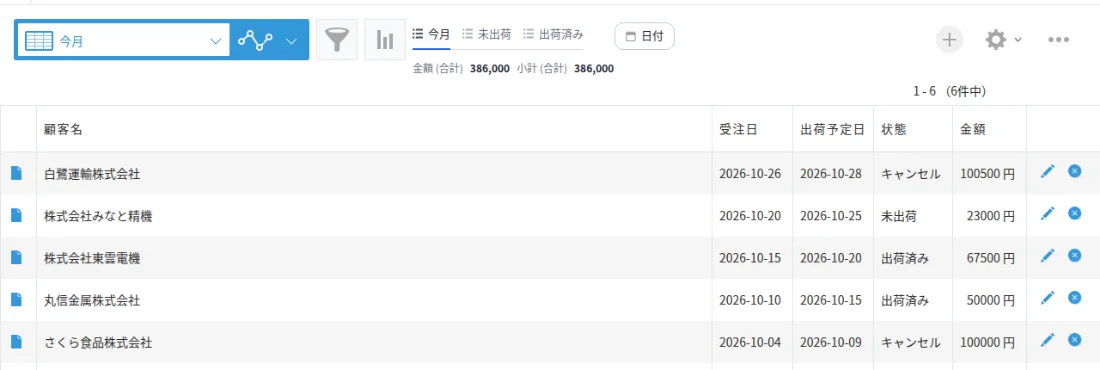
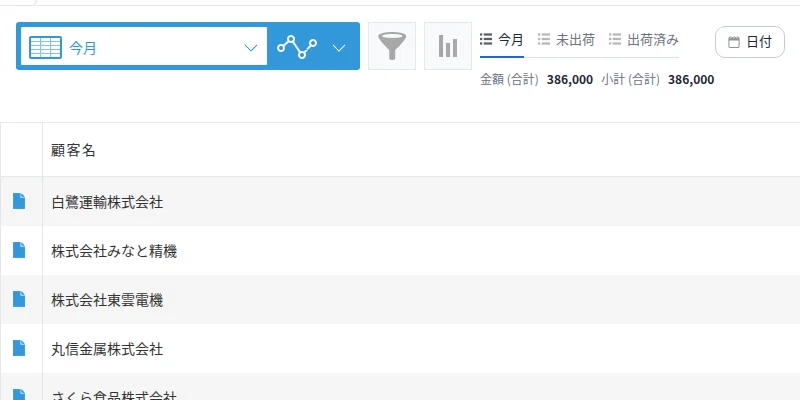
List view of an order management app. The this-month tab is selected, and the total amount and record count are shown above the list

Inquiries

Tabs for "Open" and "Resolved," plus "This week." The number of remaining cases is shown right at the top.
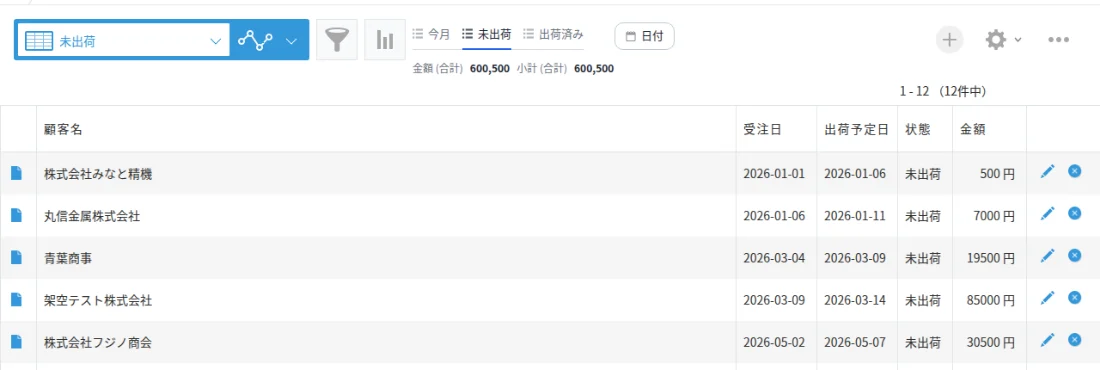
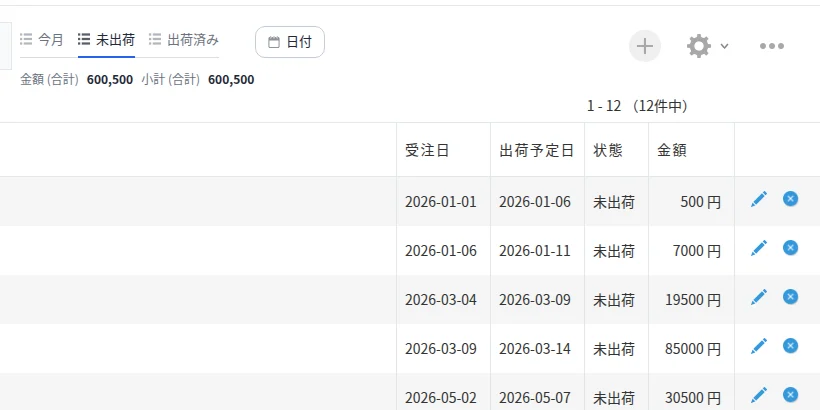
List view. The not-shipped tab is selected, and the total amount and remaining record count are shown above the list

Shipping schedule

Filter by "Today" or "Tomorrow." On warehouse devices, pair this with AutoSignage.

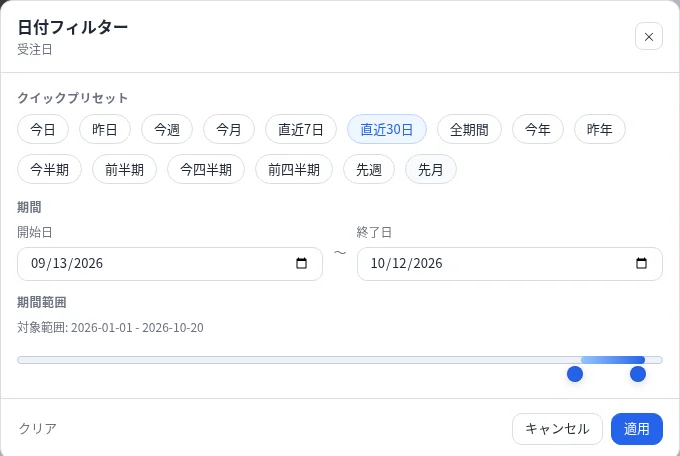
Date filter screen with date-range presets such as today, yesterday, this week, and this month lined up

Screens

View tabs above the list. Tabs for this month, not shipped, and shipped are shown with icons, with that month's list displayed below
Tabs: lay out your views with icons right above the list.
Date filter modal screen with quick date-range presets such as today, this week, and this month
Date-range presets: just pick this week, this month, this quarter, or this year.
Total chip and record count above the list. Below the total amount and record count are columns for order date, scheduled shipping date, status, and amount
Totals and counts: the current total amount and record count appear above the list.
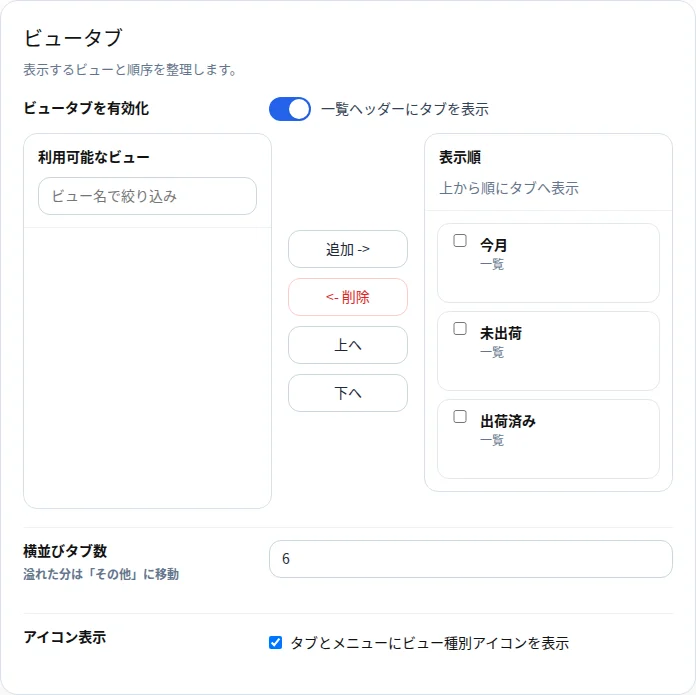
Plug-in settings screen. The view tabs panel is used to set which views to show and in what order
Settings screen: choose the views to show in the tabs.

Same views. Fewer clicks.

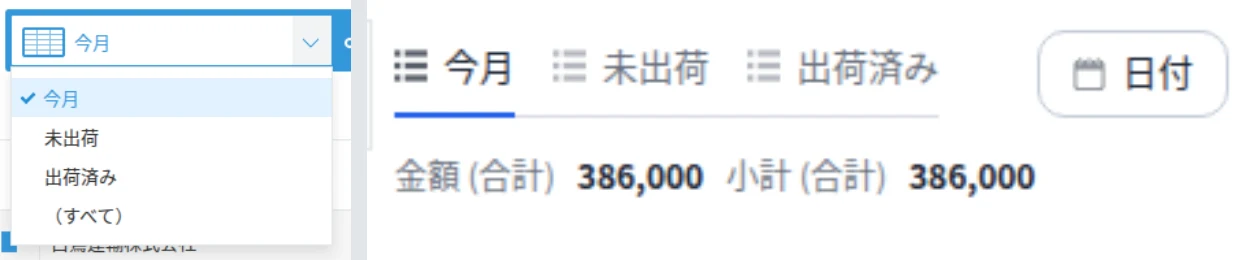
Comparison image showing the standard view-switching menu open (left) next to the PlugBits ListKit tab display (right)

Left = standard (with the view menu in the top-left open), right = tabs.

How it works

  1. It only changes how the list is displayed. It doesn't touch your records or view settings.
  2. No business data is sent externally. License verification only sends your kintone domain name and key.
  3. It works only through the official API and events, without touching kintone's internal structure.

Conditions for company use

Installation

  1. Upload the plug-in zip file (download the zip) to kintone's plug-in management
  2. In the target app's settings, add the uploaded plug-in to the app
  3. Open the plug-in's settings screen, enter your key in the "License" field, and save (not needed for the second and later apps in the same domain; if you haven't purchased yet, you can start the trial from "Try free for 14 days")

If you've lost your key: enter the email address used at purchase and submit, and we'll send the key to that address again.
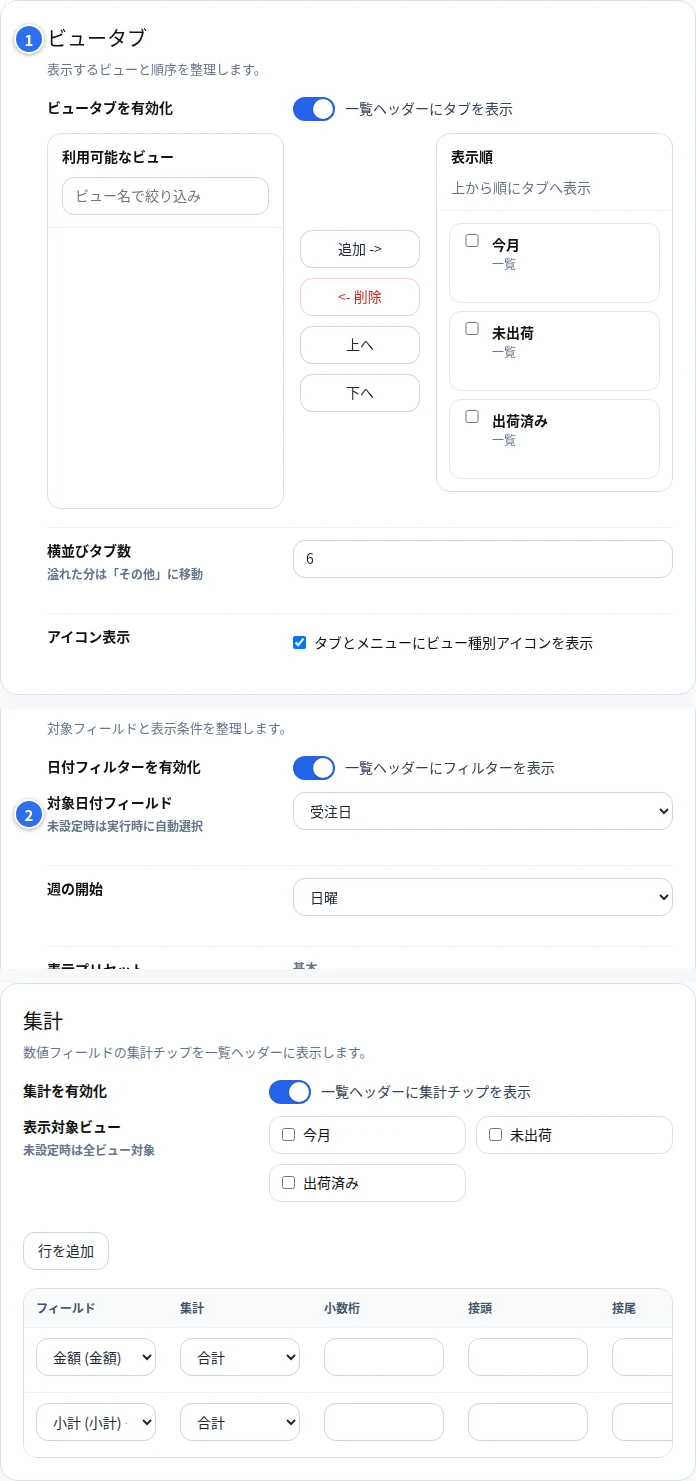
Only 2 settings to configure

PlugBits ListKit settings screen. Numbers mark the two panels for view tabs and the target date field. The totals panel is also visible but unnumbered

To filter by date range, all you need is a single date or date/time field.

  1. Views to show in the tabs, and their order
  2. The date or date/time field to use for the date range

(Optional) Totals to display above the list: choose a number or calculated field.

For detailed steps, see the manual.

SIGNPOST compliantHow it aligns with SIGNPOST

  1. Designed in line with not replacing standard features (3-29, moderate UI customization). Tabs and the date-range filter stay within the scope of improving list usability, leaving full-scale aggregation to the standard graph feature.