Getting Started
From install to initial setup in about 5 minutes.
Set up host access permission
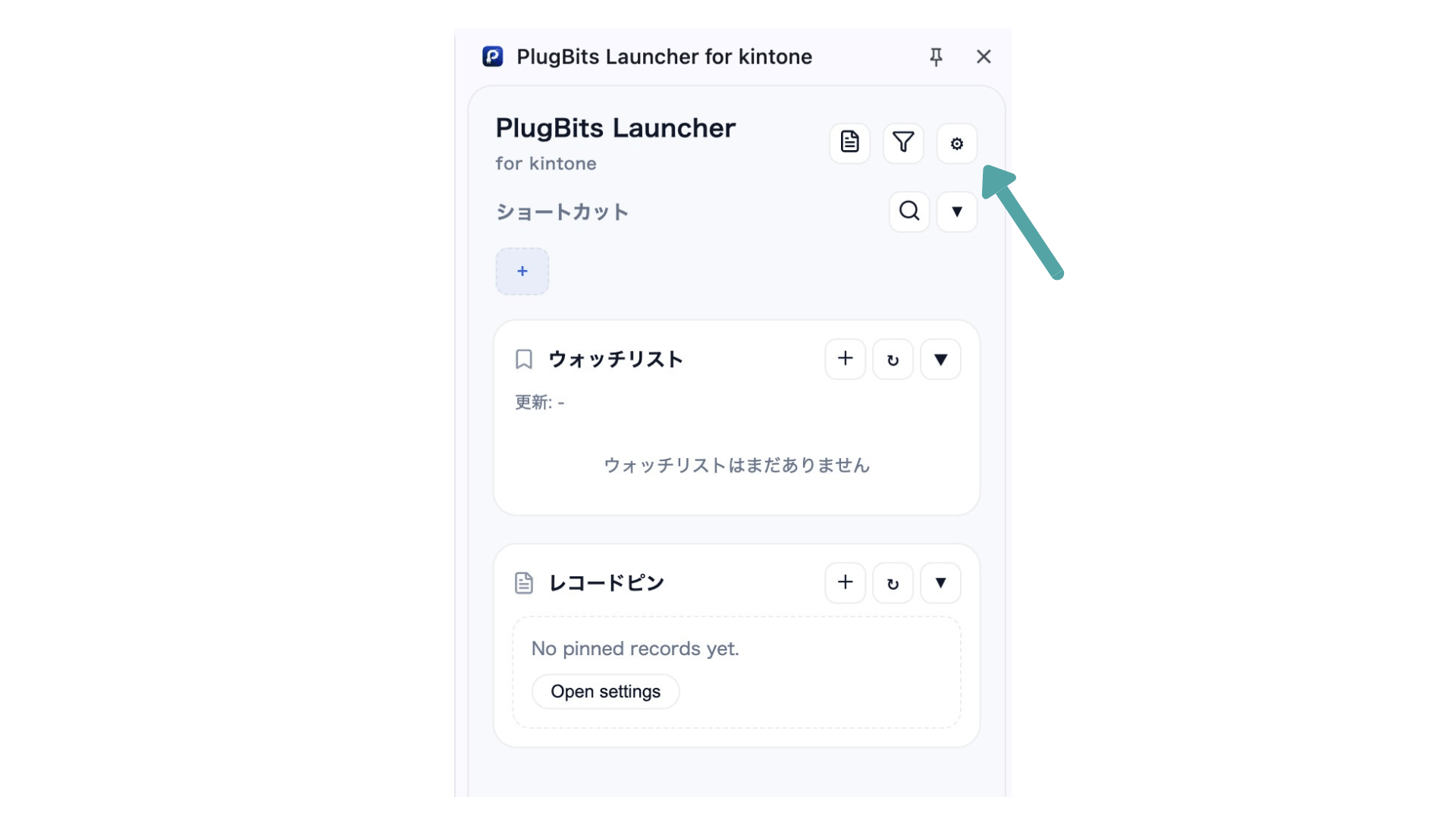
Open the settings screen
Click the ⚙️ icon in the top right of the Side Panel to open settings.
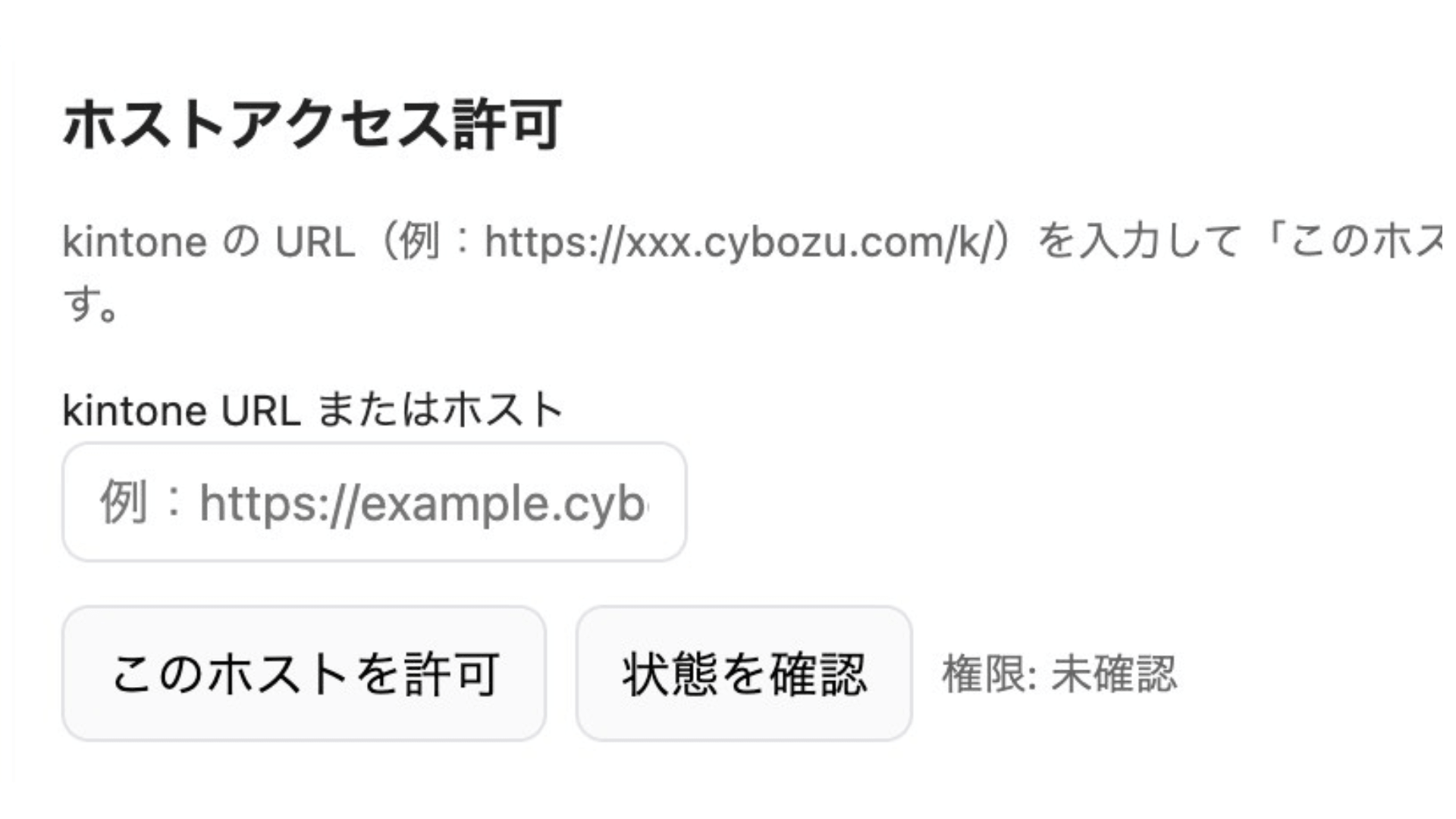
Enter your kintone URL and click "Allow this host"
In the "Host access permission" field on the settings screen, enter your company's kintone URL (e.g., https://xxx.cybozu.com/k/), then click "Allow this host."
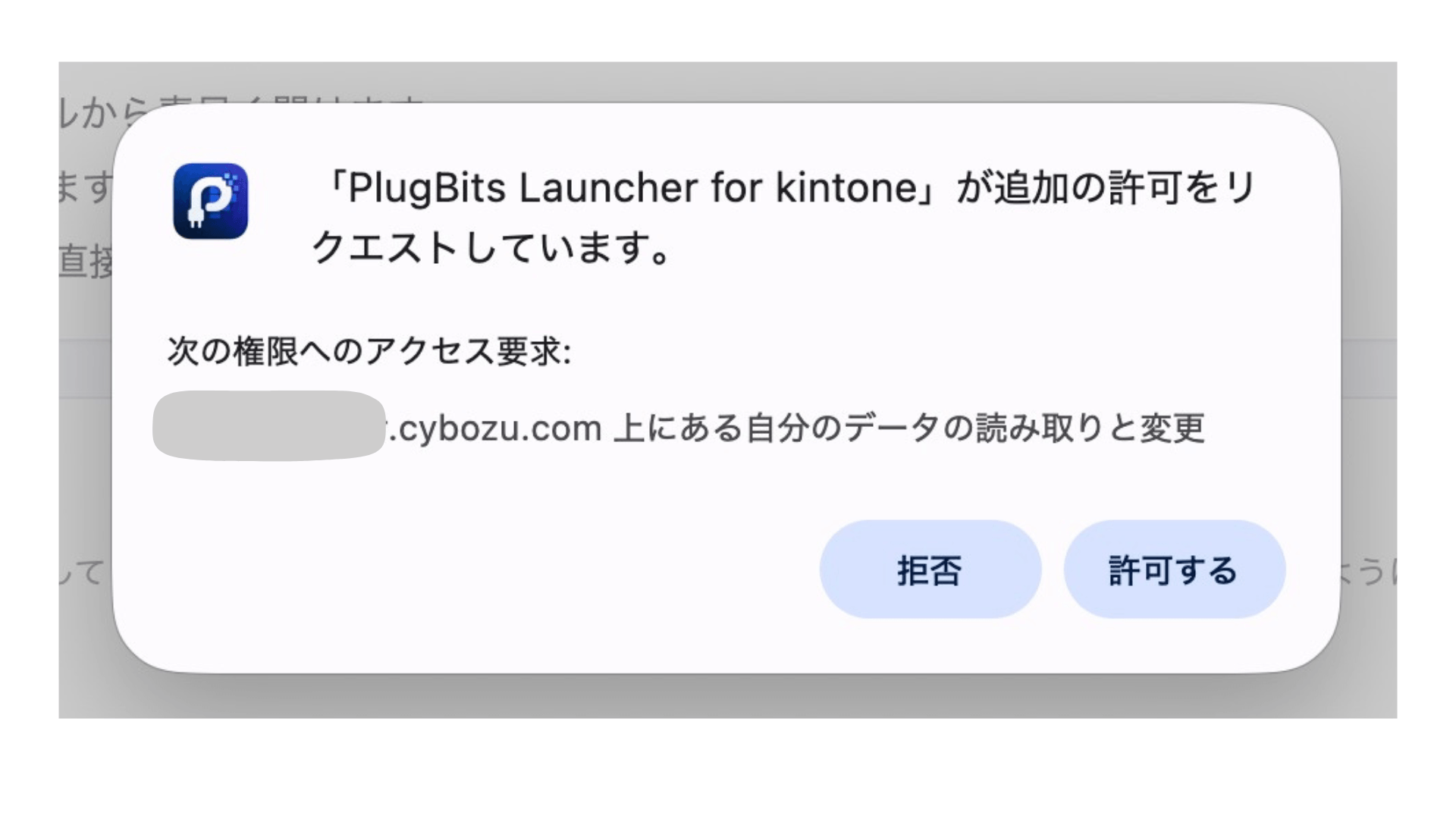
Click "Allow" in the permission request
A confirmation dialog from Chrome will appear. Click "Allow."
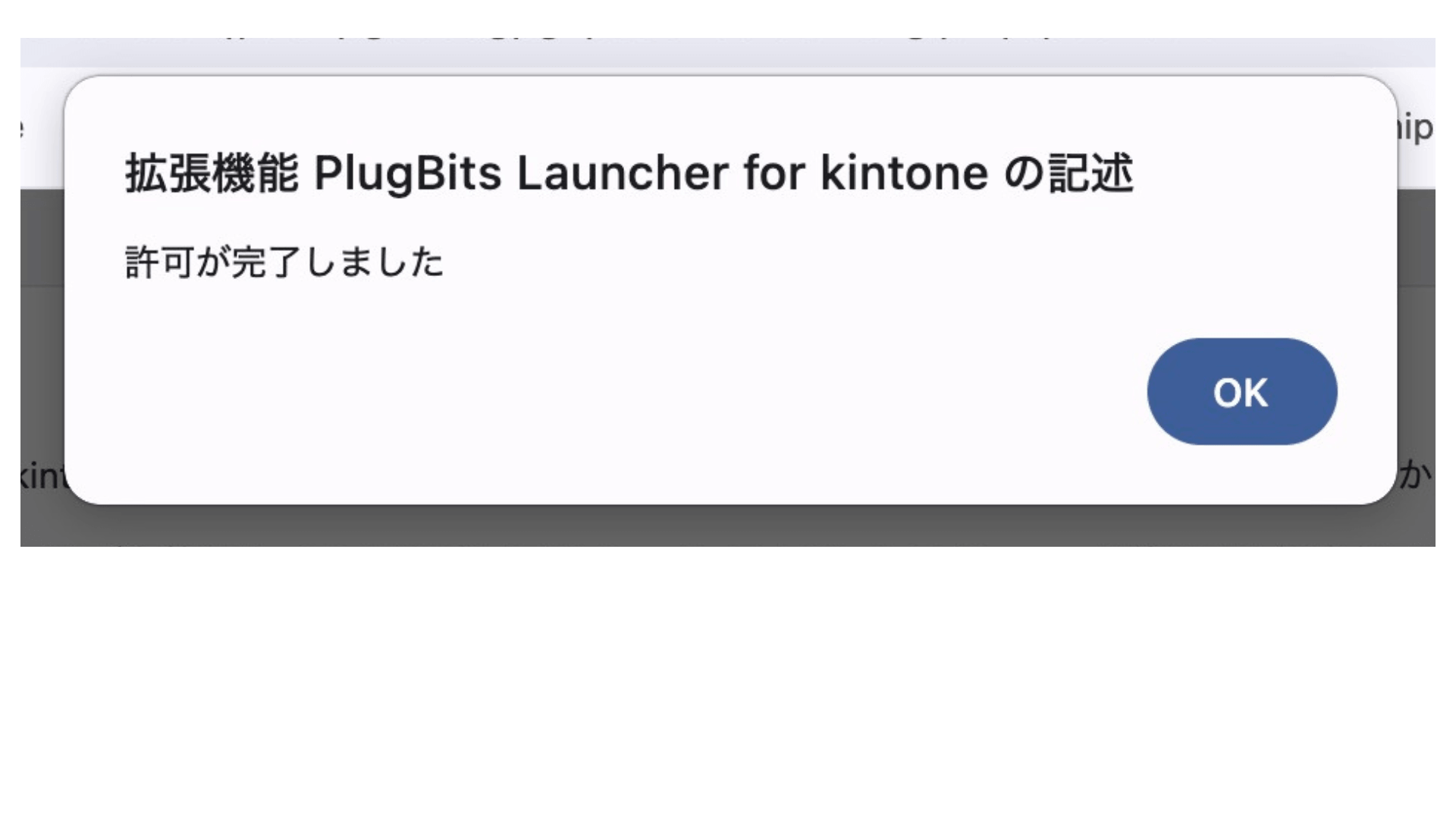
"Permission granted" means setup is complete
Once the completion dialog appears, host setup is done. Reload your kintone page to activate the feature.
Register shortcuts
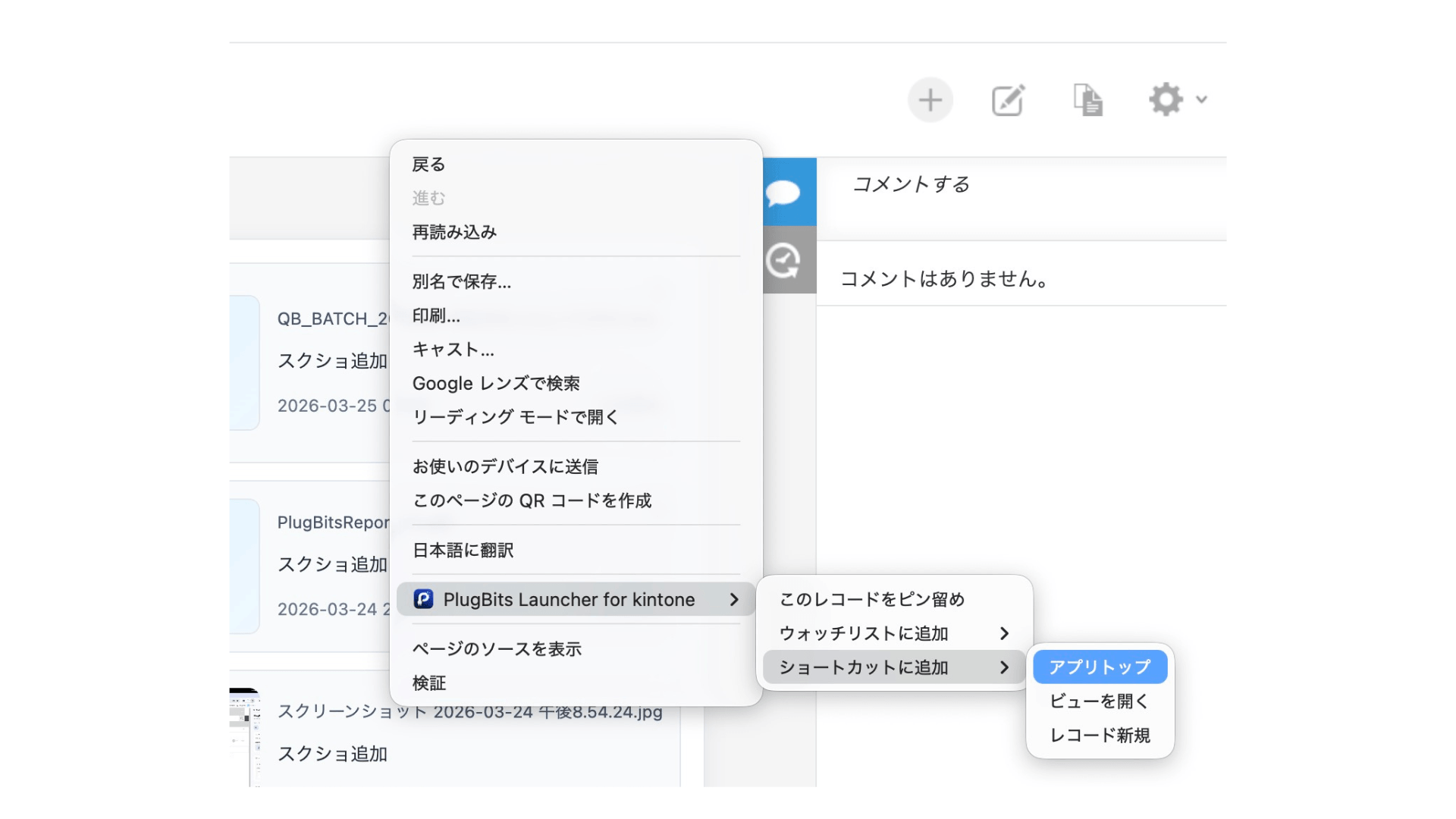
You can register frequently used apps, views, and new-record pages via the right-click menu.
Set up your Watchlist
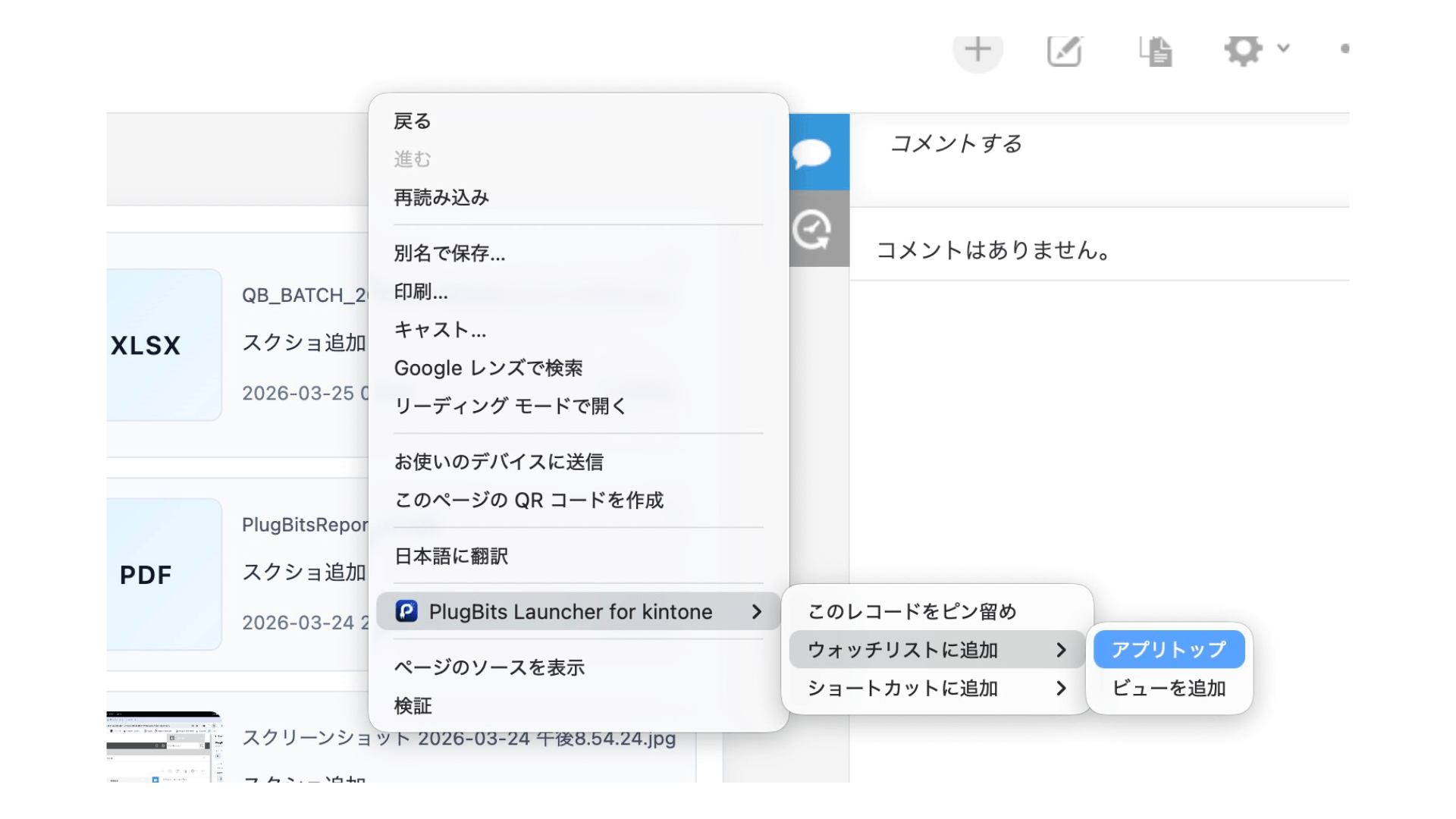
Register views you want to monitor continuously for record counts, such as records awaiting process management action. Set this up via right-click → Add to Watchlist.
Frequently Asked Questions
I set it up, but it doesn't work
Reload (F5) your kintone page after completing host setup. Changes may not take effect until you reload.
Can I use it in InPrivate (private) windows?
Turn on "Allow in InPrivate" in Chrome's extension settings before setting up host access.
Do I need kintone administrator permission?
No. PlugBits Launcher does not change any kintone settings. You can use it simply by installing it in your own browser.
Can I use it with multiple kintone environments?
Yes. You can use it across multiple environments by adding each URL under host access permission.